I earn money through affiliate links on this site. Links labeled "Affiliate Link" may result in commissions at no extra cost to you. I recommend resources based on my experience and/or very careful evaluation of their usefulness to this site's audience. Content on this site, including text, images, & audio/video (which may include voiceovers), may be generated with the assistance of AI technology.

MouseClickTutorials.com

Teaching people how to make websites...
...and how to make websites make money!

2. Explore > A. Site Login & WP Dashboard

2. Explore > A. Site Login & WP Dashboard

How to Log In to Your WordPress Site

Logging into a WordPress site is the first step to managing and customizing a website. The WordPress dashboard is the central hub where all site editing, content creation, and configuration take place. Accessing the login page is simple but may vary slightly depending on the hosting provider or custom setup.

This tutorial explains how to locate and log in to the WordPress dashboard, providing foundational knowledge needed to explore the tools and features WordPress offers.

Key Login Information

  1. The default WordPress login URL is typically found at yourdomain.com/wp-admin. Replace yourdomain.com with the domain of the website.
  2. Login credentials include a username and password. These are set during the WordPress installation process or provided by the hosting provider.
  3. Securely store login credentials using a trusted password manager, which helps keep the website secure and access convenient.

WordPress Dashboard Overview

What is the WordPress Dashboard?
The Dashboard is the administrative back end of your site. It’s what you see whenever you’re logged in and building the site rather than just viewing it. Every major function is accessed from here.

Navigation comes from two areas: the left-hand menu and the top bar. Together, they form a rotated “L” shape anchored in the top-left corner. The rest of the screen is the working area, which changes depending on which section you’ve entered.

Home & Updates
The Home screen is the landing point after login, with quick links and shortcuts. Updates is where you maintain WordPress, themes, and plugins.

Posts
Posts are designed for time-based or recurring content: blogs, updates, news, or articles. They display by publish date, with the newest first, and can be organized by categories and tags. Posts keep a site dynamic, searchable, and scalable as content grows.

Media
Media is the library for everything uploaded: images, video, audio, and documents. Each item stored here can be reused across the site. A clean, optimized media library keeps your site fast and organized while giving you a central place to manage assets.

Pages
Pages hold content meant to last: About, Contact, Services, or other permanent sections. They don’t use categories or tags and are not tied to dates. They can be organized hierarchically, with one page nested under another, which helps structure larger sites. Together, they form the backbone of site navigation.

Appearance
Appearance controls presentation. Themes set the overall design framework — layouts, typography, and templates. Menus define navigation. Widgets add small functional elements into theme-defined areas like sidebars or footers. Appearance connects structure to design, shaping how visitors experience the site.

Plugins
Plugins extend WordPress with new functionality. From SEO and analytics to e-commerce and backups, plugins are how WordPress becomes a platform. This section handles installation, activation, updates, and removal. Success depends on selectivity: too many plugins slow a site, while well-chosen ones add enormous value.

Users
Users defines who can access the site and what they can do. Roles like Administrator, Editor, Author, Contributor, and Subscriber enforce different permission levels. Properly assigning roles prevents mistakes, protects critical areas, and supports team collaboration.

Settings
Settings governs global behavior. Site title and tagline, timezone and formats, homepage display preferences, and reading defaults all live here. Plugins often add their own configuration panels under Settings. These options establish the baseline rules for how the site operates.

MOUSE CLICK BY MOUSE CLICK

1 of #
Access the WordPress Login Page

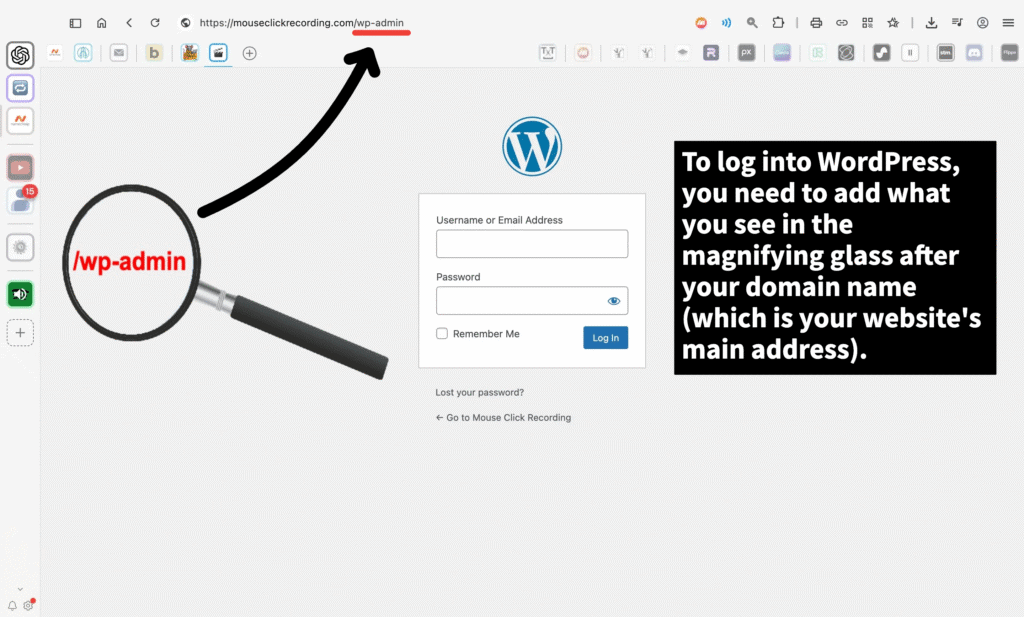
Add /wp-admin to the end of your domain name (your site’s main address).

For example: typing yourwebsite.com/wp-admin takes you to the WordPress login screen.

2 of #
Log In to WordPress

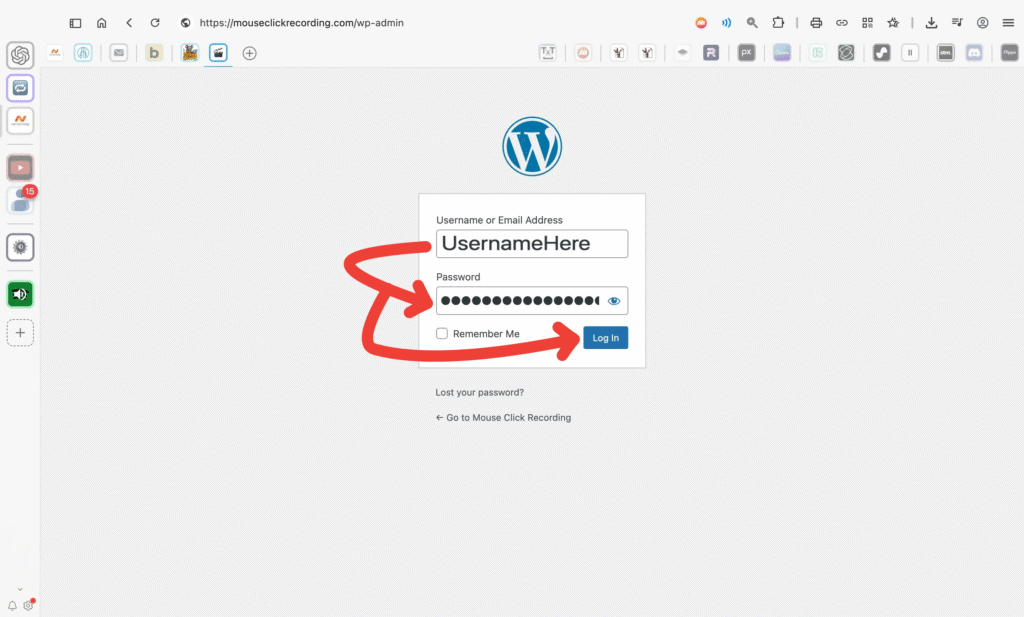
Enter your username or email address and your password, then click Log In.

You can check Remember Me if you want your browser to keep you signed in on this device.

3 of #
Get Familiar with the Dashboard Layout

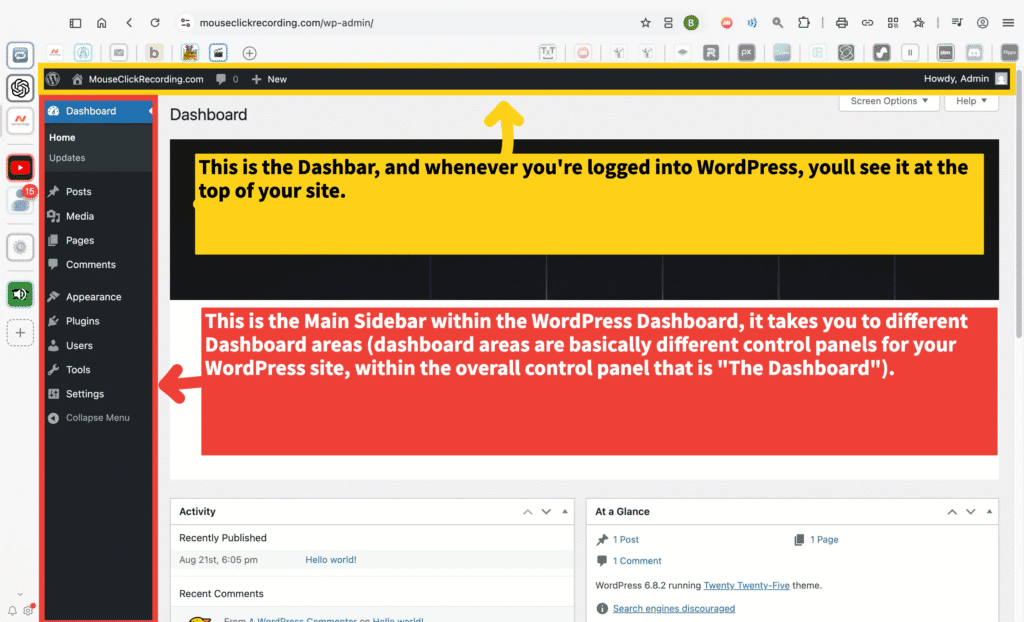
At the very top is the Dashbar. Whenever you’re logged into WordPress, you’ll see it—whether you’re working in the Dashboard or just viewing your site.

On the left is the Main Sidebar. Each item here takes you to a different section of the Dashboard, which acts as the control center for your entire WordPress site.

4 of #
Clean Up the Dashboard's "Home" Area

You don’t need to keep everything that WordPress shows by default. Click Dismiss to remove the “Welcome to WordPress” box, or use Screen Options at the top to choose which items you want displayed on the Dashboard home area.

Keeping this space uncluttered makes it easier to focus on what matters.

5 of #
Understanding WordPress Updates

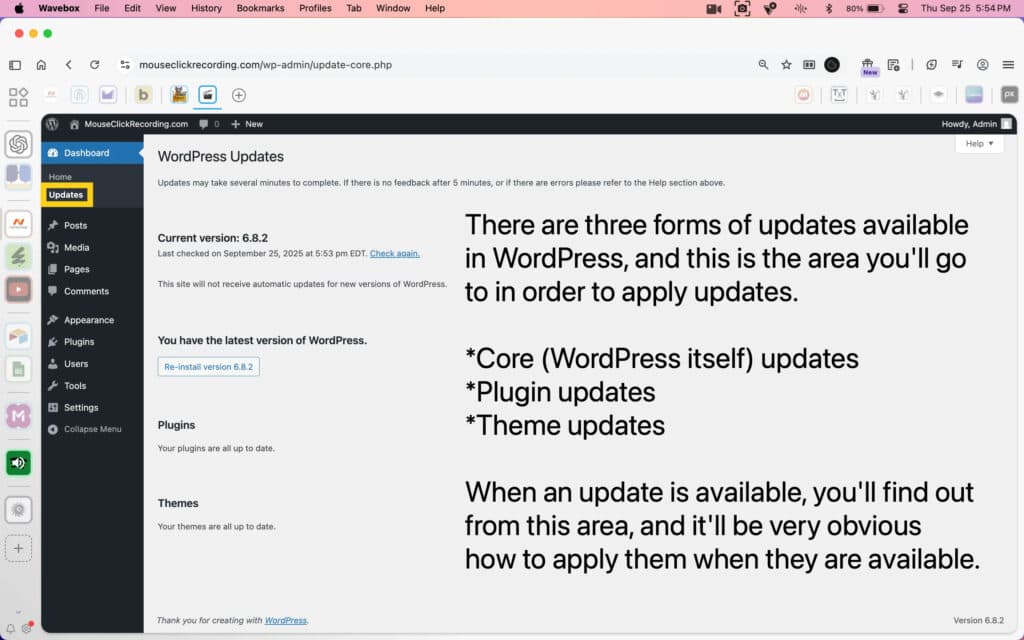
The Updates area shows if WordPress, your plugins, or your themes need a new version. Each section lists what’s available, with an option to update. If everything is current, WordPress confirms it here.

Checking this area regularly keeps your site secure and running smoothly.

6 of #
Posts > All Posts

When you click Posts in the WordPress sidebar, the menu expands. WordPress opens All Posts, which is the first submenu item.

This area shows a list of every post on your site. You can filter the list by date or category to make finding posts easier.

From here you can:

  • Hover over a post for quick edit options.

  • Click the title to open it in the full editor.

  • Select “View” to see the post live on your site.

Other items in the Posts menu, like Categories and Tags, will be covered later in the course. For now, All Posts is the main place you’ll use to manage and organize your posts.

7 of #
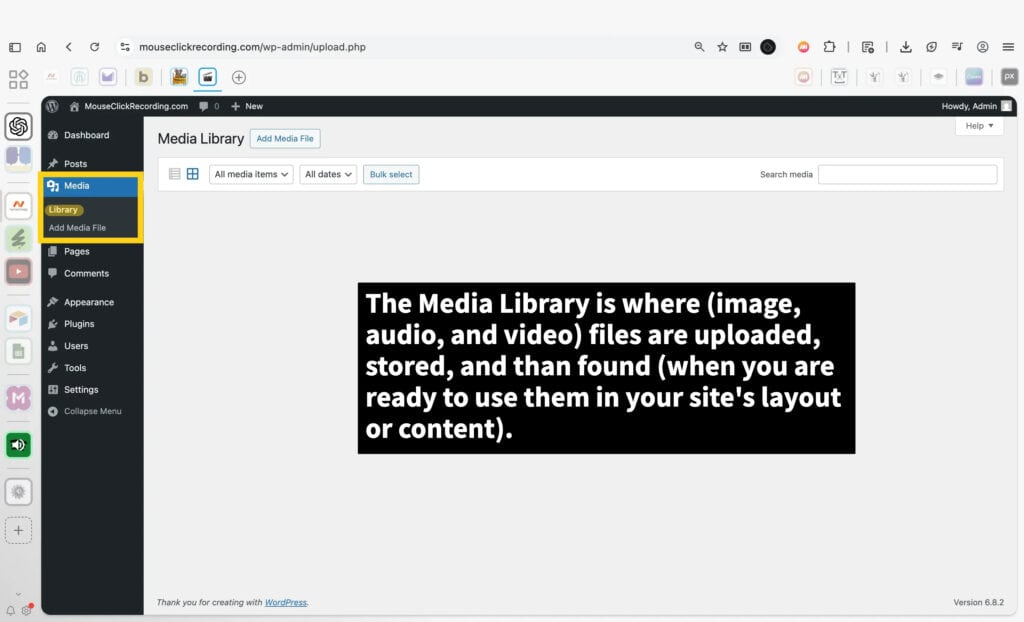
Media > Library

The Media Library is where WordPress stores your files — images, audio, video, and more. It’s your storage space, and anything you upload here will be ready to use later.

There are two ways to get to uploading:

  • From the Media link in the sidebar, which opens a full-page upload screen.

  • From the Add Media File button inside the Library, which opens a small upload box above the Library.

Both methods add files directly into the Library, and they’ll appear in the list once uploaded.

Inside the Library you can:

  • Search and filter your files.

  • Use Bulk Select to delete multiple files at once.

  • Open a file to see details like size, type, and dimensions.

When the Media Library opens from an editor — like when you’re editing a post, page, or even a widget — it behaves a little differently. You can select one or many files and insert them directly where you’re working. That’s also when features like galleries become available, but they stay tied to the specific post or page rather than showing up as separate items in the Library.

8 of #
Uploading to the Media Library

Clicking Add Media File opens a window to choose files from your computer. You can select one or many at once.

The window may look a little different depending on whether you’re uploading directly in the Media Library or coming in from an editor, but the end result is the same: WordPress uploads your files and they appear in the Library, ready to use later.

9 of #
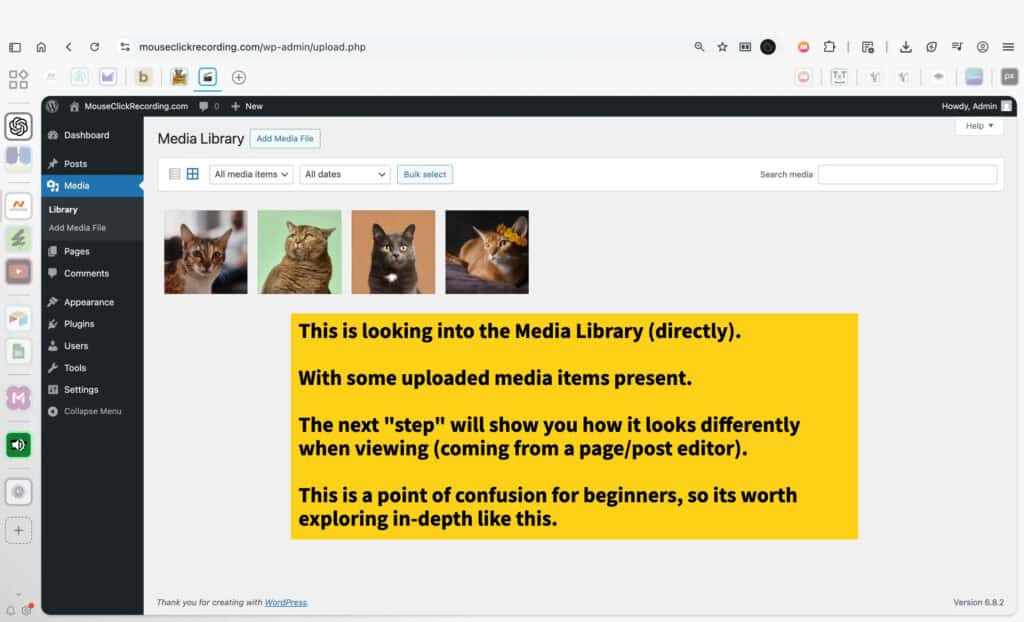
Media Library – Opened Directly

This is the Media Library viewed directly, with some uploaded files now visible. You can scroll, search, or filter to find what you need, and use Bulk Select if you want to delete multiple items.

When the Library is opened from a post or page editor, the screen looks a little different — you’ll be choosing files to insert directly into your content. That difference can be confusing for beginners, which is why it’s worth showing both views in detail.

10 of #
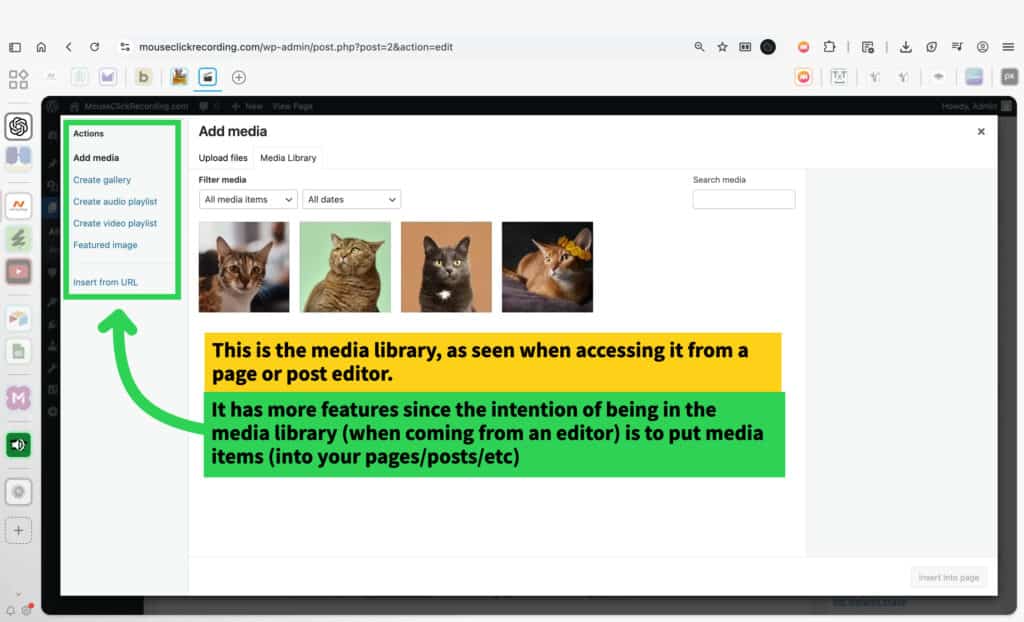
Media Library – Opened from an Editor

This is the Media Library when opened from a post or page editor. The layout looks similar to the direct view, but you’ll notice extra options on the left. These are here because the purpose changes — you’re not just storing files, you’re inserting them into your content.

From this screen you can:

  • Upload new files or pick from existing ones.

  • Insert a single image, audio, or video.

  • Create a gallery, audio playlist, or video playlist.

  • Set a featured image for the post/page.

  • Insert media from a URL.

At the bottom right is the option to insert what you’ve chosen directly into the page or post you’re editing.

11 of #
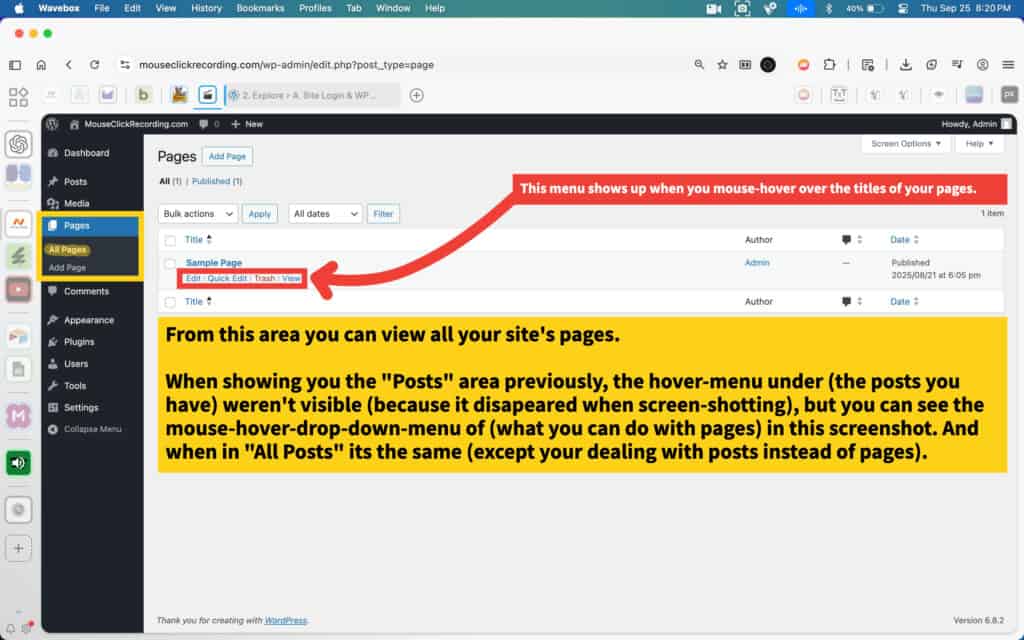
Pages > All Pages

This area lists every page on your site. At the top, you can filter by date to narrow things down if you have many pages.

When you hover over a page title, extra options appear:

  • Edit – open the full editor for that page.

  • Quick Edit – make fast changes like title, slug, or status.

  • Trash – move the page to the trash.

  • View – see the page live on your site.

This works the same way as the Posts area you saw earlier. The only difference is that here you’re working with pages instead of posts.

12 of #
Appearance > Themes

The Themes area is where you manage the overall design of your site. The theme that’s currently active is always shown with an Active label.

If you only have one theme installed, it fills the area as a large card. When you install more themes, each one appears as a smaller card in a grid. From here you can see which theme is active and preview other installed themes.

To add something new, click Add New at the top. That opens another view of the Themes area, where you can browse the WordPress theme directory or upload a theme file from your computer.

Changing a theme won’t remove your posts or pages, but the way your site looks can change depending on the theme you activate.

13 of #
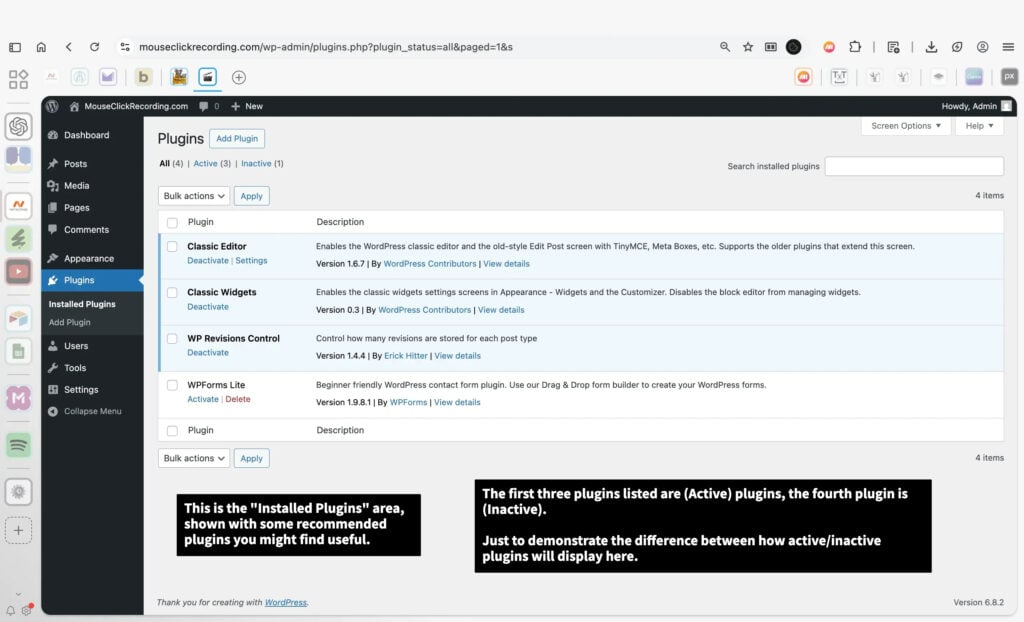
Plugins – Installed Plugins

The Installed Plugins area shows all the plugins currently on your site. Each one is listed with a short description and links that let you turn it on, turn it off, or remove it.

Active plugins are easy to spot because they’re highlighted and give you the option to deactivate them. Inactive plugins look dimmer and instead give you the option to activate or delete them.

At the top, you can filter the list to see all plugins, only active ones, or only inactive ones. If you want to make changes to several plugins at once, you can use the bulk actions menu.

This is the place you’ll come back to whenever you need to manage the plugins you’ve installed.


Classic Editor
https://wordpress.org/plugins/classic-editor/
By WordPress.org
Enables the WordPress classic editor and the old-style Edit Post screen with TinyMCE, Meta Boxes, etc. Supports older plugins that extend this screen.

Classic Widgets
https://wordpress.org/plugins/classic-widgets/
By Tonya Mork
Enables the classic widgets settings screens in Appearance → Widgets and the Customizer. Disables the block editor from managing widgets.

WP Revisions Control
https://wordpress.org/plugins/wp-revisions-control/
By Erick Hitter
Control how many revisions are stored for each post type.

WPForms Lite
https://wordpress.org/plugins/wpforms-lite/
By Syed Balkhi / WPForms
Beginner-friendly WordPress contact form plugin. Use the drag-and-drop form builder to create forms without code. The free Lite version is available in the plugin repository; the paid Pro version with more features is sold by WPForms.

14 of #
Users > All Users

The Users area lists every account on your site. Each entry shows the username, email, role, and how many posts that user has created.

As an administrator, you can add new users, delete accounts, or change roles. Roles control what a user can do — for example, an administrator has full access, while other roles have fewer permissions.

When you’re just starting, you’ll usually only see your own administrator account here. If you invite others to help manage or write content, their accounts will be listed in this area.

15 of #
Settings

The Settings area is where you control the overall behavior of your site. It includes options for things like site title, writing defaults, reading display, discussion settings, media handling, permalinks, and privacy.

Because each section under Settings affects your site in important ways, this area will be covered in its own dedicated tutorial. For now, just know this is where to go when you need to adjust how your site works at a deeper level.

MouseClickTutorials.com

Teaching people how to make websites...
...and how to make websites make money!

Before You Buy: Know the Industry Games

Hidden Incentives in Online Recommendations

A lot of content online looks like it’s meant to be helpful. It might be labeled as a review, a list of top picks, or just a casual post like “I found this and it’s cool.” But in many cases, that content isn’t created to help someone make a better decision. It’s created to earn money through affiliate commissions.

What affiliate links are for

Affiliate links exist to support content by allowing someone to earn a commission when a product or service is purchased through a link they’ve shared. That’s the whole purpose. It doesn’t add cost to the buyer—and when used responsibly, it can reward content that genuinely helps.

The problem is how these links influence what gets recommended in the first place.

How incentives distort content

Some affiliate content is shaped by payouts—where higher-paying products and services get pushed harder. But more often, the problem is something else entirely: laziness.

A lot of affiliate content isn’t the result of research or thoughtful guidance. It’s based on whatever’s convenient. A product or service is already popular, someone else is promoting it, or it has an affiliate program—so it gets plugged in without much thought. There’s no testing, no real consideration of what would actually help the audience, and no accountability.

In these cases, the product or service itself might be perfectly fine. But the recommendation isn’t grounded in anything useful, and that’s what creates the disconnect. It leads to content that promotes whatever’s easiest to monetize, skips stronger alternatives that require more effort to discover, avoids mentioning downsides that could reduce clicks, and simply recycles whatever’s already trending among other affiliates.

It’s not about how much something pays. It’s about why it’s being recommended.

A product or service that pays well isn’t the problem if it actually fits the use case. But when it’s included just because it earns—or because it was the easiest thing to grab—that’s not a real recommendation. It’s content that exists to sell, not to help.

How to recognize honest affiliate content

Genuine recommendations feel different. Affiliate links are disclosed openly. Pros and cons are explained clearly, not glossed over. The explanation comes before the link. Alternatives that don’t offer commissions are still mentioned when they’re relevant. And the content doesn’t rely on pressure, urgency, or sales language to get someone to click.

When an affiliate link supports a thoughtful recommendation, it adds value. When the link is the reason something was included in the first place, the integrity of the content falls apart.

How this site handles it

Affiliate links are used here—but never as the reason something gets recommended. Some products and services pay nothing. Others pay less than their competitors. If they actually work, solve a real problem, and serve the audience this site is built for, they get included.

Payouts don’t determine what’s shown. Usefulness, reliability, and fit for the audience do.

Every recommendation on this site includes two links side by side: a clearly marked affiliate link, and a non-affiliate version. That way, anyone who wants to support the site can do so with one click—without being forced into it. And anyone who doesn’t can still access the same product or service without friction.

No popups, no fake scarcity, and no pressure. Just clear information and real options — presented with your time and trust in mind.

How to Choose Web Hosting That Won’t Screw You Later

Why Hosting Choices Can Look Fine at First — and Still Cost You Later

Many web hosting recommendations are influenced by affiliate incentives. That influence often shapes what gets promoted — not based on what’s reliable or useful, but based on what earns commissions. To understand how that works, scroll up to Hidden Incentives in Online Recommendations.

Once that’s clear, it becomes easier to recognize common patterns in how web hosting is sold — especially when it comes to pricing, positioning, and long-term reliability.

What Is Web Hosting, Really?

Web hosting is infrastructure. It’s what keeps a website live, accessible, and functioning smoothly. It stores the site’s files, manages uptime and speed, and often determines how frustrating things get when something breaks.

A good host does its job in the background — quietly, reliably.
A bad host appears fine at first — then slowly drags performance down through downtime, slowness, or support failures.

And often, that decline is masked early on by extra-friendly onboarding.
Sales chat is responsive. Setup support feels hands-on. It’s all about getting the account active and the site online fast. But after that grace period — often right after the refund window passes — service quality shifts.

Some companies do this deliberately: prioritize new customers, while gradually neglecting existing ones.
Others just aren’t equipped to deliver consistent support at scale. Either way, the pattern is common — especially with shared hosting.

Why Shared Hosting Gets Promoted So Heavily

Shared hosting is one of the most promoted types of hosting — not because it’s reliable, but because it’s easy to sell and easy to profit from. Many hosting companies offer shared plans as a low-cost entry point. And many of those companies run affiliate programs where commissions are paid out just for generating a new customer — regardless of which plan the customer signs up for.

That means affiliates often push the cheapest plan available, because it’s easier to convert — even though the payout is the same (or nearly the same) as recommending a better option. A $2.99/month shared hosting plan can still result in a $100+ commission, because the hosting company expects that customer to stick around long enough to cover the cost.

This dynamic is why shared hosting dominates most “best web host” lists — not because it’s actually good, but because it converts easily and pays well.

Why This Site Rejects Shared Hosting Entirely

MouseClickTutorials.com does not recommend shared hosting under any circumstances — not for beginners, not for temporary projects, not for anyone.

Even when managed by capable companies, shared hosting remains too unstable, too crowded, and too limited to serve as reliable infrastructure. It introduces risks and headaches that are completely avoidable with better hosting types. The environment is unpredictable, the performance is inconsistent, and the support is often too generic to be helpful when something goes wrong.

This position isn’t based on theory — it’s based on what actually happens when shared servers are overloaded, misconfigured, or mismanaged. And even without bad intent, it’s incredibly easy for problems to creep in unnoticed. One site’s spike in traffic or bad code can affect everyone else on the server.

Shared hosting is one of the biggest reasons new site owners feel like they “did something wrong,” when the real issue is invisible under the hood. That’s not a foundation worth building on.

The Issue with “Free” Domains

Many hosting companies advertise a “free domain” when signing up for a plan. But in most cases, the domain offer includes conditions:

  • The domain may be registered in the host’s name rather than the customer’s.

  • It may be locked or tied to the hosting plan, making it difficult or expensive to transfer.

  • The domain becomes the anchor keeping people on subpar hosting just to keep their site online.

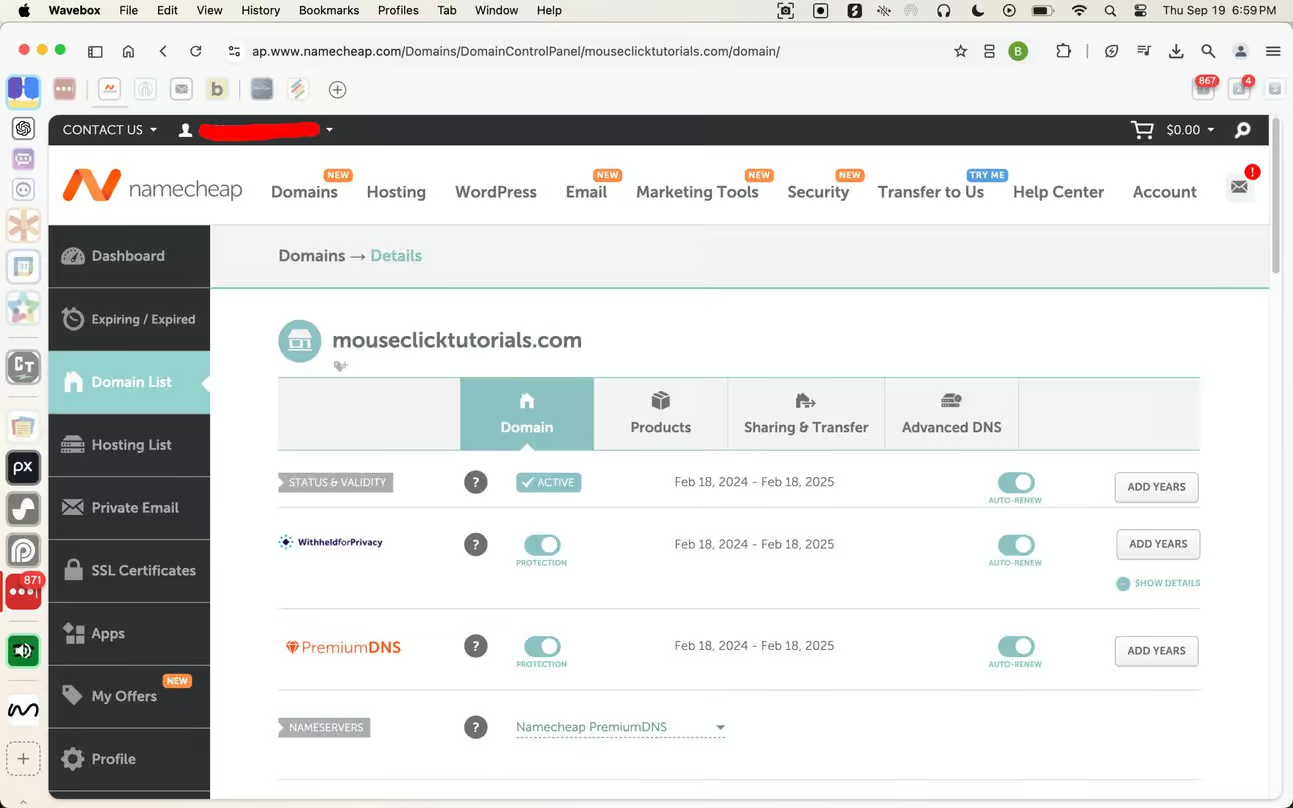
    The fix: always register domains separately with a trusted registrar like Namecheap. That ensures full ownership and makes it easy to change hosts at any time.

Why Cheap Hosting Isn’t Really Cheap

Low introductory prices like $2.99/month are usually misleading:

  • Most require paying 2–3 years upfront to get that rate

  • Renewal rates after the initial term are much higher

  • Core features like backups, SSL, and live support may cost extra — or be limited

  • “Unlimited” plans often include vague usage caps that throttle performance as sites grow

What seems cheap upfront becomes expensive over time — in stress, in missed revenue, and in wasted hours troubleshooting problems that wouldn’t exist on better infrastructure.

And that’s not just a figure of speech. If a site owner spends 40+ hours a year dealing with slow load times, broken features, unclear issues, and back-and-forths with bad support — and if that person would be paid even minimum wage for that time — the true cost of “cheap” hosting becomes obvious.

The value of reliable hosting isn’t just technical. It’s economic. It protects time, momentum, and peace of mind.

Understanding Hosting Types — and Why This Site Only Recommends Some

There’s no universal “best,” but some types of hosting are far better suited for actual website owners — and some should be avoided entirely. Here’s a breakdown:

Shared Hosting
Low-cost, low-quality. Unpredictable performance. Limited scalability.
Often oversold and oversaturated. Even beginners should avoid it.

Managed WordPress Hosting
Built specifically for WordPress. Handles caching, updates, backups, and security automatically.
Fast, secure, and low-maintenance — ideal for most creators, freelancers, and business owners.
This is the default recommendation for a reason.

VPS Hosting (Virtual Private Server)
A private slice of a physical server. More control and flexibility, but also more responsibility.
Best for those with technical experience or specific configuration needs.

Cloud Hosting
Highly scalable and fast — if fully managed. If unmanaged, it can become overly complex.
Great for ecommerce, SaaS, or platforms expecting rapid growth, as long as the host handles the technical side.

Dedicated Hosting
An entire server for one user. Very powerful, very expensive.
Best reserved for advanced use cases with high traffic or strict infrastructure needs.

Colocation
The highest tier — full control over physical hardware inside a rented datacenter rack.
Used for enterprise infrastructure, compliance requirements, or custom network architecture.
Not relevant for most site owners.

What Actually Makes Sense for Most People

For most websites — especially anything built on WordPress — managed WordPress hosting strikes the right balance. It’s fast, secure, and far easier to manage than alternatives that require technical upkeep.

There are more powerful hosting options for those running complex infrastructure or custom apps, but managed WordPress hosting covers the needs of most creators, freelancers, small businesses, and growing projects — without the stress.

The best managed hosts don’t just check boxes. They eliminate problems before they happen.
They don’t disappear when support is needed. They don’t nickel-and-dime for features.
They just make the site work — and keep it working.

That’s the experience most people are actually looking for. And that’s the experience this site teaches people how to build toward.

????

Hosting Types, Use Cases, and a Reliable Default

Why Your Host Isn’t Just a Checkbox — and What Actually Works for Most People

Most people picking web hosting treat it like a quick checkbox.
Domain, check. Hosting, check. Done.

But your hosting provider determines how fast your site loads, how often it breaks, how secure it stays, and how painful things get when something goes wrong.

It’s infrastructure — not a formality.
And one type of hosting still gets pushed far too often — especially by affiliate blogs chasing easy commissions.

Shared Hosting

This is where MouseClickTutorials.com draws a hard line.

Shared hosting is the $2.99/month pitch that sounds beginner-friendly… but quietly causes more damage than most new site owners can spot. Your site gets dropped into a crowded server with hundreds or thousands of others, all fighting for the same limited resources.

If another site spikes in traffic or runs unstable code, your site slows down — or goes down.
Support is slow, vague, and scripted.
Problems get blamed on you, with upgrade nudges as the default fix.

It often looks fine at first. That’s the problem.
When your site slows down or glitches later, you assume it’s something you did wrong.

But it’s not. It’s the hosting.
This site does not recommend shared hosting. Not for beginners. Not for anyone. Not ever.

Managed WordPress Hosting
This is the recommended path for most people building on WordPress.

Managed WordPress hosting is built to remove technical headaches. It handles backups, caching, updates, and security automatically — so you don’t need extra plugins just to keep things stable. The best providers offer fast performance and platform-aware support teams who actually know WordPress.

It’s low-maintenance. High-reliability.
And it’s the default recommendation here because it actually works.

VPS Hosting
A virtual private server (VPS) gives you more control and power — but also more technical responsibility.

You manage server setup, patches, security, and updates.
It’s great for developers and experienced users.
It’s not ideal for beginners or creators who want to focus on building content, not managing infrastructure.

Cloud Hosting
Cloud hosting can be powerful, scalable, and efficient — if it’s fully managed.

Otherwise, it comes with complexity most people don’t want.
Server configuration, cost optimization, scaling logic — it’s easy to get lost in the weeds unless the platform handles those pieces for you.

Used well, cloud hosting is a strong choice for fast-growing platforms, ecommerce sites, or custom apps. But for a first site or general-purpose WordPress site, it’s often overkill.

Dedicated Hosting
Dedicated hosting gives you your own physical server — with total control and no resource sharing.

It’s powerful and expensive, and usually reserved for specialized use cases: high-traffic apps, large media platforms, or advanced infrastructure stacks.
It’s not the place to start unless you already know exactly why you need it.

The Reliable Default

For most people using WordPress — creators, freelancers, educators, business owners — managed WordPress hosting is the most useful path forward.

It’s fast. It’s secure. It scales without stress.
And it keeps your site online, protected, and supported — without you needing to touch the backend.

That’s what this site recommends.
That’s what this site teaches.
Because it actually works.
Why Rocket.net is Recommended for Managed WordPress Hosting

1. Specialized WordPress Hosting: Why Rocket.net is a Perfect Fit

Rocket.net focuses exclusively on hosting WordPress websites. This specialization ensures their servers and services are optimized to deliver the best performance, security, and user experience for WordPress users. If you’re building a WordPress site, Rocket.net provides a tailored environment designed specifically for your needs.

2. Blazing Fast Performance: Why Rocket.net Prioritizes Speed

With advanced caching, a content delivery network (CDN) included in every plan, and servers fine-tuned for WordPress, Rocket.net ensures your site loads quickly for users around the globe. Fast websites improve user experience and can help boost search engine rankings.

3. Comprehensive Security: Why Rocket.net Protects Your Site

Rocket.net provides built-in security features like firewalls, malware scanning, and protection against DDoS attacks. Their proactive approach ensures your website stays safe and your data remains secure without needing additional plugins or services.

4. Hassle-Free Management: Why Rocket.net is Easy to Use

Rocket.net simplifies WordPress hosting with automatic updates, a clean and intuitive control panel, and one-click WordPress installations. Their beginner-friendly interface and expert support make managing your hosting stress-free, even if you’re new to websites.

Rocket.net is a premium WordPress hosting provider that specializes in delivering fast, secure, and user-friendly hosting services. With optimized performance, built-in security, and dedicated WordPress support, Rocket.net is a top choice for anyone looking to create and maintain a high-performing WordPress site.

Check out the complete setup tutorial here →

Regular Link

I don't earn commissions from this link

Affiliate Link

I earn commissions from this link

When Managed Hosting Isn’t Enough

Other Hosts to Consider

Rocket.net is the recommended starting point for most users — it’s fast, secure, and built specifically for WordPress. It handles speed, stability, and security without overwhelming you with backend tasks.

But if you’re building something more complex, running multiple applications, or just want to understand what else is out there, here are a few other hosts worth knowing about.

These hosts are grouped by how much control and infrastructure complexity they offer — starting with other options in the same managed WordPress category, then expanding into VPS, full-stack platforms, and finally, enterprise-level hosting.

Managed WordPress (Same Tier, Different Strength)

Templ.io
Templ.io is another managed WordPress host — in the same category as Rocket.net. While Rocket.net is the top recommendation here, Templ.io stands out for one reason: their support team is more willing to assist with technical issues at the code level.

If a plugin breaks layout or a script throws an error, they may help you investigate what’s going wrong. They won’t write your code, but they’ll go deeper than most.
Use if you want managed WordPress hosting with an extra layer of technical support — without leaving the simplicity of this hosting tier.

Managed VPS (More control, broader use cases)

KnownHost
KnownHost gives you full server-level access through managed VPS hosting. You can install custom software, run multiple apps, configure email, and handle more advanced workflows than a WordPress-only host would allow.

Some plans still use cPanel, while others may include DirectAdmin — check the specifics before choosing.

Use if you’re managing more than just a WordPress site, or need flexibility that managed WordPress doesn’t offer.

Managed VPS (cPanel-focused, long-term scalability)

Hivelocity
Hivelocity offers managed VPS hosting with strong cPanel support, full root access, and upgrade paths into dedicated servers or colocation — all without locking you into a proprietary dashboard.

You’re not limited to WordPress, and you don’t need to give up traditional tools.

Use if you want a cPanel-friendly platform with the freedom to run mixed environments — and the ability to scale far beyond VPS later if needed.

Cloud-Native Performance Hosting

Servebolt
Servebolt doesn’t follow the VPS/cPanel playbook. It’s built from the ground up for speed — especially for dynamic sites like WordPress or WooCommerce.

They manage performance at the stack level: memory allocation, rendering optimization, backend tuning — all handled by their proprietary infrastructure.

Use if you’re running a high-traffic or ecommerce-heavy site where raw speed is a top priority and you’re okay with skipping traditional server tools.

Dedicated Servers (Unmanaged, full control)

Hetzner
Hetzner is known for high performance at extremely competitive prices — especially in the EU. They offer both dedicated hardware and cloud instances, but everything is self-managed. No hand-holding, no support for setup or configuration.

It’s powerful, but entirely your responsibility.

Use if you know what you’re doing and want total ownership of your environment for speed, scale, or regulatory control.

Colocation (Enterprise-grade physical infrastructure)

Colocation Providers
Colocation means you own the hardware. You rent rack space in a datacenter — they supply power, cooling, and bandwidth, but everything else is up to you.

This isn’t a web hosting plan — it’s raw infrastructure.

Used by SaaS companies, media platforms, and organizations with strict compliance, latency, or scaling needs.

Providers in this space include Hivelocity, PhoenixNAP, Equinix, Digital Realty, ColoCrossing, and OVHcloud.

Use if you already know exactly why you need this. If you’re not sure, you don’t.

Recommended Resources - Review Process

Traffic Light Rating System: Overview

Recommended resources are rated using a system inspired by traffic lights. This system makes it easier to find what’s actually useful for building websites, streamlining workflows, and boosting productivity across different areas. Resources are evaluated for their quality, reliability, and how much they benefit MouseClickTutorials’ audience.

Green Light resources are intentionally few. Very few resources are truly Green Light worthy, and from those, only a small mix is chosen. That’s deliberate — people only have so much time, energy, and money, so this tier exists to serve the best interests of MouseClickTutorials’ audience. If a resource appears here, it’s because it delivers proven value for those learning and building along with this site.

Yellow Light resources are also excellent, but not all are meant for the very top. Most wouldn’t make the cut for Green Light, though a few could. Their placement here doesn’t take away their value — it reflects the balance between curation, context, and the need to keep Green Light small and focused. Yellow Light provides more worthwhile resources that can still help this audience, without stretching the top tier too far.

Why No Red Light Resources?

There’s no “red light” category here. Low-quality or harmful resources aren’t listed at all. This approach is intentional, for a few reasons:

  • Practicality: Listing every bad product or service would flood the site with noise and make it harder to spot what’s actually valuable.

  • Liability: Calling out poor options by name risks legal issues like defamation. Focusing on trusted recommendations avoids that problem.

  • Awareness: In other parts of the site, industries like web hosting and affiliate marketing are explained in depth — so readers learn how to avoid pitfalls and spot shady practices without needing a blacklist.

Green Light Resources

Wavebox

Wavebox

Wavebox is a unified browser-workspace platform designed to streamline how people manage apps, tabs, and daily workflows. Instead of juggling dozens of windows or losing track of important tools, Wavebox brings everything together in a structured, distraction-reducing environment. Its Chromium foundation ensures full compatibility with modern web apps, while its workspace organization, app containers, and sleep-mode optimizations keep performance smooth even with heavy multitasking. Whether handling email, project dashboards, creative tools, or research tabs, Wavebox creates a stable hub that simplifies digital work and reduces friction throughout the day.

Beyond organization, Wavebox includes powerful features such as memory isolation, multi-account separation, customizable workflows, and deep integrations with AI and automation tools. These capabilities help users maintain focus, switch contexts without clutter, and move through tasks with more efficiency and clarity. Built-in features like split-screen views, tab sets, and smart search reinforce Wavebox’s role as a consolidated command center rather than a standard browser. With continuous improvements and a design centered on productivity, Wavebox has become a preferred choice for creators and professionals who want a faster, more controlled way to manage complex digital environments.

Wavebox

Internal Review (Learn More)
Regular Link

Commissions will not be earned from this link.

*Not Monetized

Affiliate Link

Commissions may be earned from this link.

*Monetized

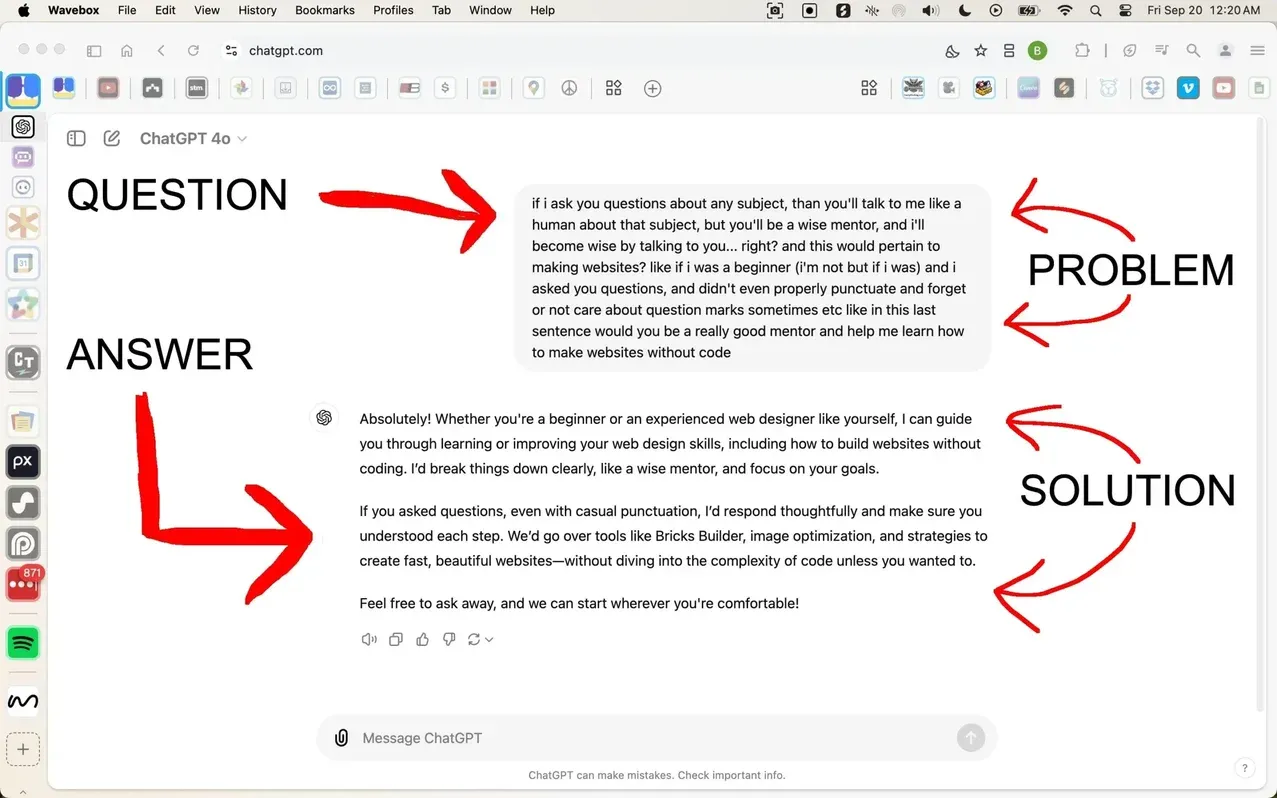
ChatGPT

ChatGPT

ChatGPT is a powerful AI platform built to enhance creativity, clarity, and problem-solving across a wide range of real-world tasks. It isn’t a basic content generator; it functions as an adaptive thinking partner capable of understanding context, analyzing information, and producing high-quality outputs that support user goals. The interface is built for speed and precision, making it easy to draft content, refine ideas, interpret instructions, and break down complex topics. Whether the task involves building a website, improving workflows, planning content, or mapping out next steps, ChatGPT offers a focused environment that elevates both creative and technical work.

Beyond writing support, ChatGPT includes advanced multimodal abilities such as image understanding, image editing, troubleshooting guidance, data interpretation, and step-by-step reasoning. This allows it to assist with everything from diagnosing technical issues to shaping strategies and improving decisions. Its ability to shift between creative insight, analytical depth, and practical instruction sets it apart from single-purpose tools. Combined with continuous updates and a design centered on usability, ChatGPT serves as a reliable partner for anyone looking to work smarter, speed up production, and navigate complex problems with confidence.

ChatGPT

Internal Review (Learn More)
Regular Link

Commissions will not be earned from this link.

*Not Monetized

Affiliate Link

Commissions may be earned from this link.

*Monetized

Namecheap

Namecheap

Namecheap is an ICANN-accredited domain registrar that offers a wide range of services dedicated to securing online identities for both individuals and businesses. With a strong reputation for affordable pricing, Namecheap allows users to register their domains without hidden fees, making it an attractive option for many. Its platform is designed with user-friendliness in mind, providing intuitive management tools that enable customers to easily manage their domains and associated services. Whether you’re a startup looking to establish your brand or an individual wanting a personal website, Namecheap caters to a variety of needs while emphasizing full ownership and control over the domain.

In addition to domain registration, Namecheap also provides various ancillary services, such as hosting options, SSL certificates, and website builders, allowing users to create a complete online presence from one platform. Their commitment to customer support is reflected in their responsive help desk, which assists users with any queries or issues they may encounter. This combination of reliable service, valuable features, and a focus on user empowerment has solidified Namecheap’s position as a premier choice for anyone looking to build and maintain a robust online identity, ensuring that customers can confidently navigate the complexities of establishing a website in today’s digital landscape.

Namecheap

Internal Review (Learn More)
Regular Link

Commissions will not be earned from this link.

*Not Monetized

Affiliate Link

Commissions may be earned from this link.

*Monetized

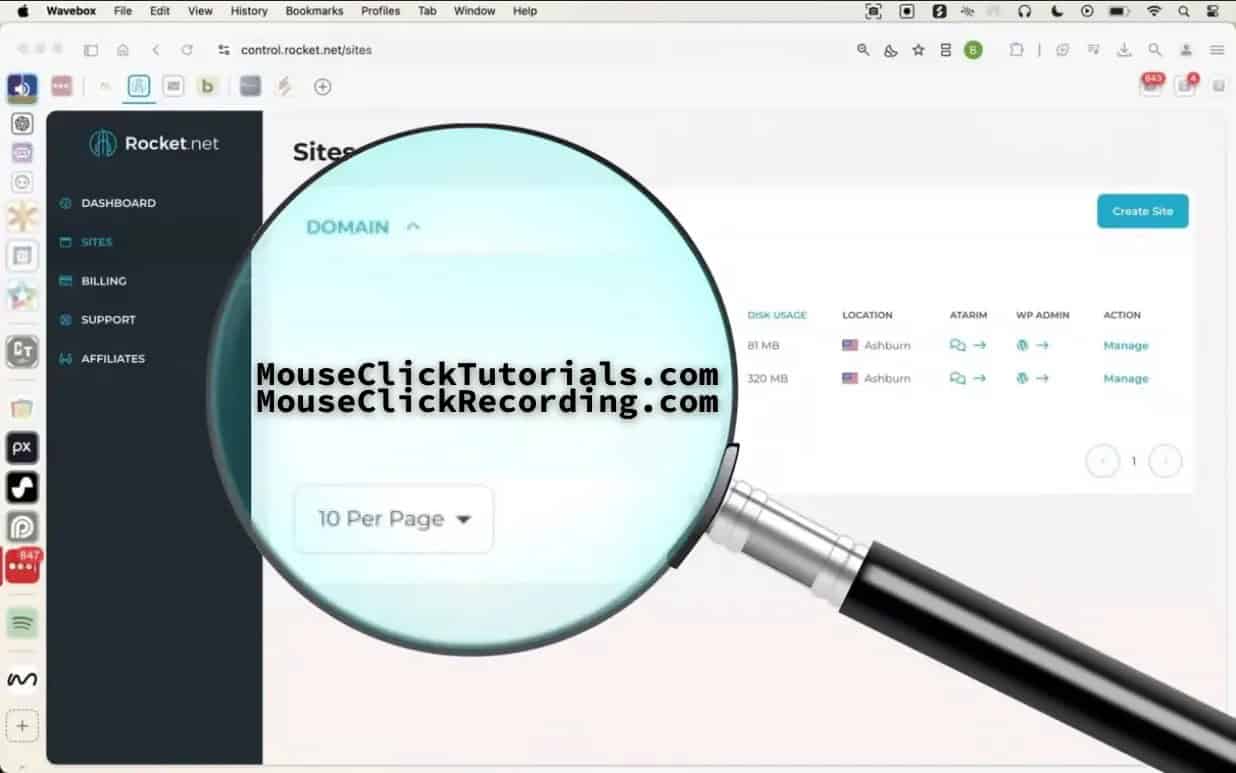
Rocket.net

Rocket.net

Rocket.net is a premium managed WordPress hosting platform engineered for exceptional speed, reliability, and security right out of the box. Unlike traditional hosts that require extensive configuration to reach peak performance, Rocket.net optimizes everything at the edge, delivering ultra-fast load times through its global CDN, built-in caching, and enterprise-grade infrastructure. The platform is designed with creators and businesses in mind, offering a clean, intuitive dashboard that makes it easy to deploy, manage, and maintain WordPress sites without technical friction. Whether you’re launching a personal project or scaling a high-traffic brand, Rocket.net provides an environment that prioritizes both performance and simplicity.

In addition to speed, Rocket.net emphasizes security and stability, integrating automatic backups, WAF protection, malware prevention, and daily updates to ensure your site stays safe and running smoothly. Their support team—known for rapid, expert-level assistance—helps users resolve issues quickly and confidently, reinforcing Rocket.net’s reputation as a premium hosting provider. Combined with its focus on transparency, hands-off optimization, and consistently strong uptime, Rocket.net has become a preferred choice for those who want a powerful, worry-free hosting experience. Its performance-first ecosystem enables creators to focus on building content and growing their audience while the platform handles the technical heavy lifting behind the scenes.

Rocket.net

Internal Review (Learn More)
Regular Link

Commissions will not be earned from this link.

*Not Monetized

Affiliate Link

Commissions may be earned from this link.

*Monetized

Bricks Builder

Bricks Builder

Bricks Builder is a highly flexible visual website builder for WordPress that empowers creators to design fast, modern, and fully responsive sites without relying on bloated themes or complex coding. Known for its clean interface and precision control, Bricks gives users the ability to build everything—from simple landing pages to full-scale dynamic websites—using an intuitive structure panel and real-time editing environment. Its performance-first approach ensures that sites load quickly and rank well, making it a strong choice for both beginners who want clarity and professionals who want depth. With global classes, reusable templates, and fine-grained layout controls, Bricks places real design freedom directly in the user’s hands.

Beyond page building, Bricks includes advanced features typically found only in premium add-ons, such as a native template system, dynamic data integration, theme-builder capabilities, and conditional logic. This allows you to visually create headers, footers, archives, single posts, and even WooCommerce layouts from a single unified tool. Its active development cycle and helpful community also ensure that users receive ongoing improvements, transparent communication, and practical support. Altogether, Bricks Builder stands out as a powerful all-in-one solution for anyone looking to build a polished, high-performance WordPress website with full creative control—streamlining the process while keeping the technical foundation solid and future-ready.

Bricks Builder

Internal Review (Learn More)
Regular Link

Commissions will not be earned from this link.

*Not Monetized

Affiliate Link

Commissions may be earned from this link.

*Monetized

Envato

Envato

Envato is a comprehensive creative marketplace designed to provide high-quality digital assets for building websites, videos, brands, and online content. Instead of sourcing graphics, templates, plugins, or stock media from scattered platforms, Envato consolidates everything into a single, well-organized ecosystem. Its library includes WordPress themes, design templates, stock photos, music, motion graphics, and more—making it a reliable resource for creators who want polished, professional assets without spending hours searching. With clear licensing and easy downloads, Envato supports both rapid production and long-term project needs across a wide range of creative fields.

Beyond its marketplace, Envato offers subscription-based access through Envato Elements, unlocking unlimited downloads for those who produce content at scale. This includes templates for websites, presentations, social media, and video editing tools—ideal for anyone building a digital presence or producing regular tutorials. Combined with strong search features, curated collections, and continuous library updates, Envato has become a go-to solution for creators who value quality, efficiency, and consistency. Its emphasis on accessible assets and straightforward workflows makes it an essential companion for modern content production, helping projects move faster while maintaining a professional polish.

Envato

Internal Review (Learn More)
Regular Link

Commissions will not be earned from this link.

*Not Monetized

Affiliate Link

Commissions may be earned from this link.

*Monetized

Canva

Canva

Canva is an accessible design platform built to help creators produce polished visuals without the complexity of traditional graphic design software. Its drag-and-drop interface, extensive template library, and wide selection of fonts, graphics, and layout elements make it easy to create everything from social posts and thumbnails to presentations, print materials, and web graphics. Canva’s workspace focuses on speed and clarity, allowing users to move from idea to finished design quickly while maintaining a clean, professional look. Whether preparing course assets, marketing materials, or visual elements for a website, Canva provides a straightforward environment that supports both beginners and experienced designers.

Beyond basic design tools, Canva offers features such as brand kits, collaborative editing, background removal, AI-assisted generation, and an ever-expanding media library that helps streamline creative workflows. Export options accommodate a variety of formats, making it simple to integrate designs into videos, websites, or printed materials. Continuous updates and a strong template ecosystem ensure users always have fresh resources to draw from. With its blend of usability, flexibility, and creative support, Canva has become a go-to solution for anyone who needs high-quality visuals without slowing down production, enabling fast iteration and consistent design across all types of content.

Canva

Internal Review (Learn More)
Regular Link

Commissions will not be earned from this link.

*Not Monetized

Affiliate Link

Commissions may be earned from this link.

*Monetized

ScreenFlow

ScreenFlow

ScreenFlow is a streamlined screen recording and video editing platform built for creators who need clean, professional results without a complicated production pipeline. It captures screen activity, webcam, microphone, and system audio with clarity, making it ideal for software tutorials, walkthroughs, and instructional content. The interface emphasizes ease of use and precise control, allowing users to cut, annotate, highlight, and refine footage quickly. Its smooth timeline editing and built-in visual callouts help turn raw recordings into polished, viewer-friendly videos with minimal effort.

Beyond basic captures, ScreenFlow includes advanced features such as multi-layer editing, animated annotations, text effects, chroma key, and audio cleanup tools that elevate production quality. Export presets optimize videos for course platforms, YouTube, and social channels, ensuring consistent results across different publishing workflows. Stable performance and a lightweight footprint keep the editing process responsive, even for long-format tutorials. With ongoing updates and a user experience centered on speed and clarity, ScreenFlow remains a favored tool for creators who want an efficient, all-in-one solution for turning screen recordings into professional, instructional content.

ScreenFlow

Internal Review (Learn More)
Regular Link

Commissions will not be earned from this link.

*Not Monetized

Affiliate Link

Commissions may be earned from this link.

*Monetized

Davinci Resolve

Davinci Resolve

DaVinci Resolve is a comprehensive post-production platform designed for creators who want studio-level control without relying on multiple separate applications. Its unified interface brings editing, color grading, visual effects, audio engineering, and delivery together in a single workflow, allowing projects to move seamlessly through each stage of production. The editing workspace is fast and responsive, supporting precise cuts, layered timelines, and efficient assembly for everything from short-form content to long-format videos. Resolve’s color grading tools—renowned throughout the industry—enable detailed adjustments that shape the style, mood, and visual identity of any project.

Beyond editing and color, DaVinci Resolve integrates advanced modules such as Fusion for motion graphics and compositing, Fairlight for professional audio mixing, and a powerful export system tailored to every major platform. GPU acceleration keeps performance smooth even with high-resolution footage, and continual updates introduce new creative tools and workflow improvements. This all-in-one structure makes Resolve especially valuable for creators who want to keep their entire production pipeline under one roof. With its blend of power, precision, and long-term scalability, DaVinci Resolve stands out as a cornerstone tool for producing polished, high-quality video content at any level of expertise.

Davinci Resolve

Internal Review (Learn More)
Regular Link

Commissions will not be earned from this link.

*Not Monetized

Affiliate Link

Commissions may be earned from this link.

*Monetized

Fileside

Fileside

Fileside is a focused, multi-panel file manager designed to eliminate the friction of navigating complex folder structures. Instead of juggling separate windows or repeatedly drilling into nested directories, Fileside lets users build custom layouts with multiple panels visible at once, creating a clear overview of their entire workspace. This approach makes comparing folders, moving assets, and organizing project files significantly faster, especially for creators handling large volumes of media, screenshots, documents, and production resources. Its clean interface keeps everything accessible without the clutter typical of traditional file explorers.

Beyond its layout system, Fileside includes practical features such as persistent workspaces, quick folder bookmarking, panel presets, and rapid file previews that help maintain momentum during content creation and editing sessions. Drag-and-drop operations feel smooth and predictable, reducing repetitive actions and keeping workflows efficient. Stability and low overhead make it reliable even when managing sizable directories. With an emphasis on clarity, speed, and control, Fileside serves as a dependable organizational hub for creators who want a more structured way to manage digital assets and stay oriented during demanding projects.

Fileside

Internal Review (Learn More)
Regular Link

Commissions will not be earned from this link.

*Not Monetized

Affiliate Link

Commissions may be earned from this link.

*Monetized

Yellow Light Resources

A

(No entries yet)


B

(No entries yet)


C

Canva
A drag-and-drop design tool that’s simple to use and great for social graphics, thumbnails, or even pitch decks.
Visit Canva

ChatHub.gg

Designed to support multiple AI chat models in one place, this platform is particularly useful for comparing responses from different models or avoiding rate limits. Users can view up to six prompt windows simultaneously, allowing for the exploration of various models on the same screen. While only one prompt can run at a time, the ability to send a prompt and skim through responses that have already landed enables a more dynamic workflow. This feature is especially beneficial for those in a hyper workflow mode, as it helps maintain creative flow. Users can quickly switch between prompts and ideas, making it easier to iterate rapidly. Although the primary use case is for comparing responses from different AI models, the platform also supports users who thrive on taking swift action and keeping momentum in their creative processes.

Note: While ChatGPT is often the go-to choice for many, this platform serves as an excellent alternative during moments of heightened productivity.


ChatHub.gg

Classic Editor
Restores the original WordPress post editor for those who dislike Gutenberg.
Classic Editor Plugin — by WordPress Contributors

Classic Widgets
Restores the legacy drag-and-drop widget screen in WordPress. Helpful for non-block users.
Classic Widgets Plugin — by WordPress Contributors


D

Darius Foroux – Get Rid of Your High Expectations
An insightful article discussing the pitfalls of holding high expectations. Foroux shares personal experiences to illustrate how unrealistic expectations can lead to disappointment. He suggests embracing lower expectations to cultivate gratitude and reduce frustration, promoting a more content and resilient mindset.
The Article

DuckDuckGo AI Chat
Lets you access lightweight AI chat without logging in. Good fallback if you’re out of GPT-4 messages or hitting limits.
DuckDuckGo AI Chat


E

(No entries yet)


F

Fileside
Fileside is an app that enhances the user experience for MacOS file management. While MacOS excels in many areas, users often seek a more efficient alternative to the default file manager. Fileside offers a simpler, more productive interface that empowers users to manage their files more effectively.


G

Gary Vaynerchuk – “No Overnight Success”
Not a tool, but a mindset, from a very successful entrepreneur. This video helps anchor you in the long game of building something meaningful.
Watch on YouTube

GeneratePress
A lightweight, performance-focused WordPress theme that’s well-coded and easy to customize. Free and premium versions available.
GeneratePress — by Tom Usborne

Google Calendar
Classic time management tool. Great for time blocking, recurring tasks, and syncing across devices.
Google Calendar


H

(No entries yet)


I

InstaWP
Instant WordPress installs without needing a domain or hosting. Perfect for recording tutorials, building client demos, testing plugins, or just trying out ideas without breaking your live site. Think of it like a WordPress scratchpad — fast, flexible, and surprisingly powerful for how light it feels.
InstaWP


J

Jetpack (VaultPress Backup)
While Jetpack is bloated, the Backup feature (formerly VaultPress) is one of the most reliable WordPress backup tools.
Jetpack Backup Info — by Automattic


K

(No entries yet)


L

(No entries yet)


M

MindMeister
Mind mapping tool for brainstorming, site structure, or project planning. Visual thinking made simple.
by MeisterLabs


N

(No entries yet)


O

(No entries yet)


P

Pexels / Pixabay
Free stock photos and videos you can use in your projects. Great when you need visuals but don’t have time to create your own.
Pexels — by Canva
Pixabay — owned by Canva


Q

(No entries yet)


R

Runway ML
AI-powered video tools for editing, background removal, and more. Helpful for fast content creation.
RunwayML


S

Stable Diffusion
Free, open-source image generation tool. Create artwork from text prompts—no subscriptions required.
Stable Diffusion

Steve Pavlina – How to Build a High-Traffic Web Site or Blog
A foundational guide emphasizing the creation of original, timeless content to build a loyal audience. Pavlina advocates for providing genuine value, focusing on long-term growth over quick fixes. His approach centers on authenticity and consistency to attract and retain readers.
The Guide

Suno AI
Generate music from text prompts. Good for creators looking to experiment with background audio or build a vibe.
Suno AI


T

TablePress
A plugin for embedding tables in WordPress posts or pages. Great for data display if you need sortable or filterable tables, but don’t overuse to avoid bloat.
TablePress — by Tobias Bäthge

Text Mechanic
A suite of browser-based tools for manipulating and formatting text. Great for bulk cleanup tasks like removing duplicates, adding line breaks, or stripping characters.
Visit Text Mechanic

TinyMCE / TinyWYM
Used in WordPress as the classic visual editor. Useful for people who prefer WYSIWYG editing over the Gutenberg block system.
TinyMCE — by Ephox
TinyWYM — legacy editor, less supported


U

(No entries yet)


V

(No entries yet)


W

Workflowy
Minimalist outliner with zoomable nesting. Great for note-taking, planning, or managing long-term projects.
Visit Workflowy


X

Xmind
Visual mind-mapping tool with clean design. Great for brainstorming, structuring ideas, or planning complex projects.
by XMind Ltd.


Y

(No entries yet)


Z

(No entries yet)

If you found this site useful, please tell others! 🙏

The content on MouseClickTutorials.com is built with clarity, purpose, and respect for the reader’s time. Tutorials are crafted to support real progress: setting up the essentials, understanding how things work, choosing reliable products and services, building a site aligned with personal goals, and learning how to earn ethically online.

If something here proves useful, feel free to share it with others who might benefit. Whether it’s a single page or the entire site, thoughtful recommendations help valuable resources reach more people trying to build online with integrity.

No email newsletter. No pop-ups. No “sign up to unlock.” That choice is intentional.

Forced funnels, artificial urgency, and inbox campaigns dressed up as generosity are not part of this model. Content remains fully accessible—no gatekeeping, no gimmicks—because real value shouldn’t come with strings attached. Trust is earned through usefulness, not pressure.

For those studying online marketing, this approach may be worth exploring. Sustainable growth often comes from delivering honest content, making ethical recommendations, and focusing on long-term relationships—not short-term conversions.

Thanks for reading, for thinking critically, and for helping shape a better web.

Contact MouseClickTutorials