Links labeled 'Affiliate Link' may earn me commissions — at no extra cost to you. I decide what's worth recommending primarily based on hands-on use, backed by real technical experience and business judgment built in the real world, not a classroom. Most of what I recommend I've used. Where I haven't, that judgment and due diligence cover the gap. Not everything I recommend has an affiliate link — if it's the best option for you, I'll point you to it either way. Content — including text, images, and voiceovers — is created with AI assistance. Here's the deal: my goal is to solve real problems for you — because that's the only version of this that works. Bad recommendations burn trust fast. Good ones compound it. My incentive and yours point the same direction: you need it to actually work. When it does, you come back — and that's how I keep the lights on. So helping you isn't the generous thing to do. It's the only thing that makes sense.

MouseClickTutorials.com

Teaching people how to make websites...
...and how to make websites make money!

How to Make WordPress Websites and YouTube Videos

💻 1. Setup > A. DomainB. Hosting / C. Point Domain / D. WP Users / E. Domain Based Email / [ More in Setup ]

💻.2. Explore > A. WP Dashboard / B. SettingsC. Themes / D. Plugins / E. Widgets / [ More in Explore ]

💻.3. Build > A. Pages & Posts / B. Nested Pages / C. Cats & Tags / D. Menus /  E. Try Bricks Builder / [ More in Create ]

💻.4. Create [BRAINSTORMING] >

3. Create > E. Content

3. Create > E. Content

Mouse Click Highlights

1 of #
PROMPT FAST, PROMPT OFTEN

The fastest way to work with ChatGPT is to stop overthinking and start talking to it the same way you would talk to a team you’re directing.

Most people freeze because they think they need the perfect wording, the perfect structure, or the perfect question. They treat AI like a search engine or some technical tool that requires precision. It doesn’t.

ChatGPT understands the intent behind your words — even when the words are messy, rushed, or spilling out in an unorganized ramble.

That’s why talking out loud or typing quickly can actually help. It removes the pressure to “get it right,” and once that pressure disappears, your thinking becomes faster, clearer, and more natural.

Rambling isn’t the goal.
Removing friction is.

When you talk freely, you move at the speed of your thoughts.

You make decisions quickly, shift directions without hesitation, and express ideas the moment they appear. ChatGPT then takes those rough, unpolished thoughts and gives you something to react to. This starts the feedback loop — the same loop leaders use when guiding teams:

  • You express the direction

  • The team executes

  • You review the result

  • You give the next instruction

That’s the real power of using ChatGPT well.
Not perfect prompts.
Not magic formulas.
Just momentum.

You don’t need to be polished. You don’t need the right vocabulary. You simply need to communicate (anything really) and let ChatGPT “do magic.”

Once something is on the screen, you’ll know what to keep, what to adjust, and what to clarify next — and that clarity only appears after you begin, not before.

This step is here to break the fear. You are not talking to a machine that needs exact syntax. You are directing something capable — similar to managing a team — and the more freely you communicate, the faster and easier the entire process becomes.

2 of #
Clear Direction Turns Into Real Output

A few words really can “make things happen.”
ChatGPT can create both written content and images from simple, plain-language directions. You can describe something like a mouse sitting at a desk made out of cheese, wearing a hoodie and clicking a computer mouse, and the AI will generate an image that matches that description. The same kind of simple direction can also produce outlines, drafts, checklists, explanations, or other written pieces. This is basically productivity on easy mode: you describe what you want, and the system immediately gives you something real to work with.

This doesn’t replace the high-level, rapid-iteration style from earlier—it builds on it.
The reason a short prompt can work well is not because “short prompts are the secret,” but because your thinking becomes clearer the more you use ChatGPT like a team you’re leading. When you’re constantly in motion—dumping ideas, asking for breakdowns, exploring options—you start seeing what needs to get done more quickly. That’s what makes even a small prompt powerful: your brain has already been sorting, connecting dots, and deciding what matters.

The real upgrade is what happens to your mind while you use the tool.
By treating ChatGPT as a group of capable helpers instead of a search box, you automatically train yourself to think in tasks, outcomes, and directions. You get better at spotting key points, noticing gaps, and choosing the next move. Over time, that makes your prompts—short or long—much more effective, because you’re no longer guessing. You know what to ask for and why.

AI provides the leverage, but you provide the leadership.
ChatGPT can generate images, drafts, ideas, and more from a few simple words, but the real power comes from you using it as a thinking partner instead of a shortcut. You stay active, you stay decisive, and you use the outputs to keep moving forward. That’s what turns a simple prompt from “just a cool trick” into a serious tool for getting things done.

3 of #
You Can Use Powerful AI Tools Without Paying

AI is accessible even if you’re not ready for a subscription.
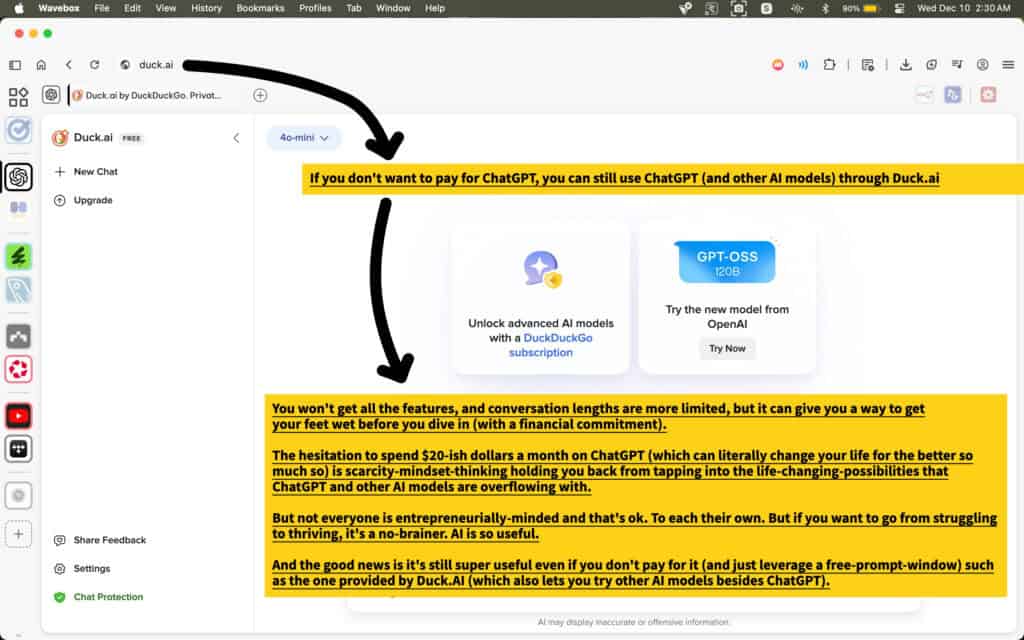
Duck.ai provides free access to models similar to ChatGPT, which means you can start experimenting, learning, and creating immediately. Just say or type what you want, and the system generates results you can work with right away.

Free access has limits, but it’s practical for getting started.
Conversations are shorter and advanced features aren’t included, but the core experience—communicating a direction and receiving a meaningful response—works the same. It’s an easy way to explore AI and understand how it fits into your workflow before making any financial decisions.

Hesitation around paying for AI tools is normal.
People often hold back because they’re unsure what the value will be or because they’ve never invested in tools for thinking and productivity before. Once you begin using AI actively, the benefits usually become clear, but it’s completely reasonable to start with what feels comfortable.

Not everyone approaches AI from an entrepreneurial angle—and that’s okay.
Some people want maximum capability right away. Others prefer to explore at their own pace. There’s no single right approach. What matters is choosing a starting point that supports your goals and comfort level.

Free options give you a meaningful way to begin.
Duck.ai lets you try multiple AI models, experiment with ideas, and get hands-on experience without paying anything. If you’re learning, exploring, or working within a tight budget, it gives you a solid path into the AI workflow.

4 of #
Envato Gives You a Huge Library of Media and AI Creation Tools

You get access to a massive library of ready-made creative assets.
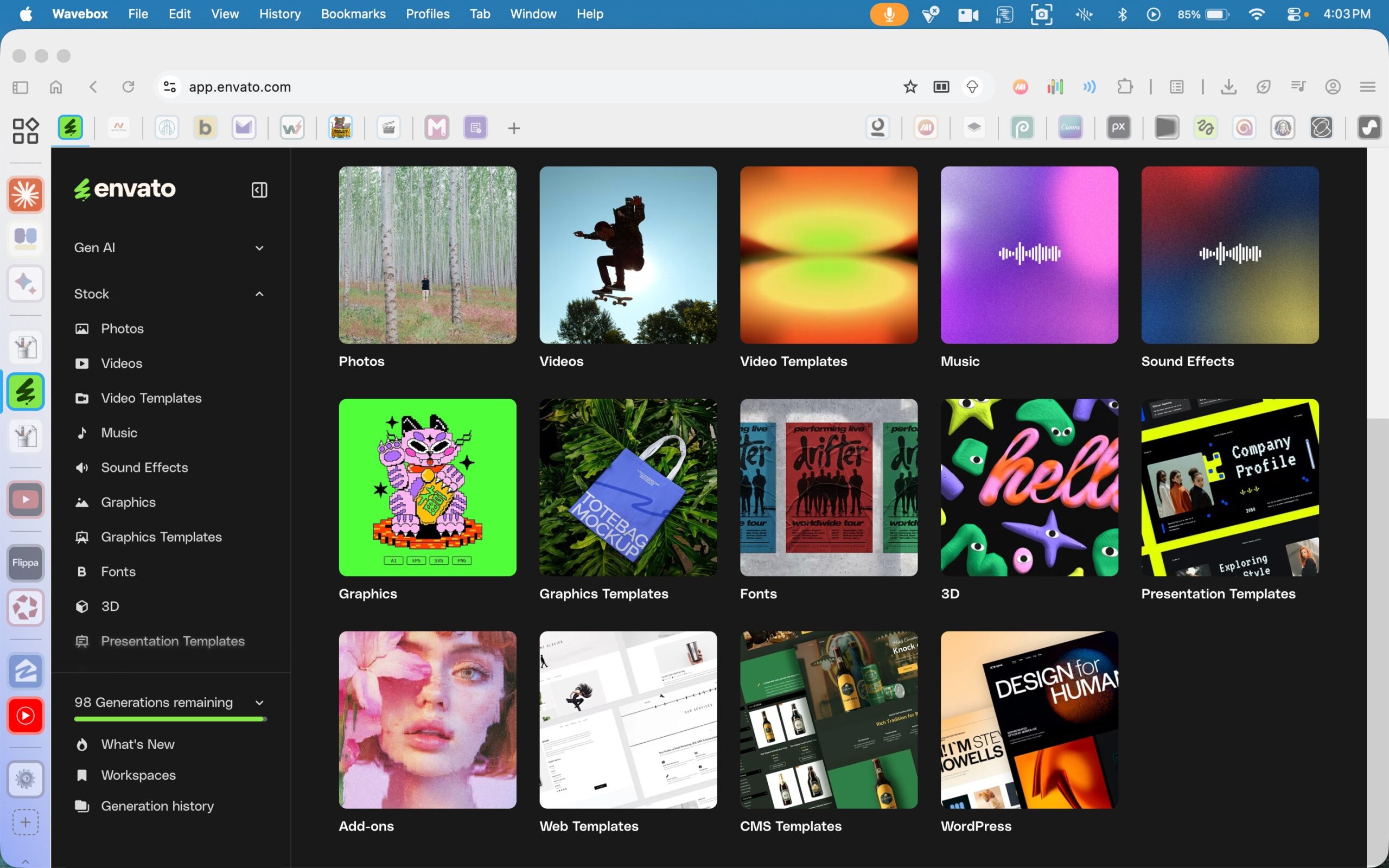
Envato provides stock images, videos, music, sound effects, graphics, templates, fonts, and more. These assets can be used in video editors, design tools, websites, social media posts, and any other place where you need polished visuals or sound. It’s basically a giant toolbox of media you can pull from whenever you need something fast.

Envato also has AI-powered tools for creating and editing content.
You can generate new images, enhance existing ones, create mockups, produce voiceovers, and experiment with different types of visual or audio outputs. Instead of starting from scratch on every project, AI tools let you quickly build variations, clean up assets, or create something new based on your direction.

Using a platform like Envato expands your creative range.
You don’t have to illustrate every graphic, record every audio clip, or shoot every video yourself. You can combine stock assets, AI-generated elements, and your own original work to get results that look polished without sinking hours into production.

This is where creativity and efficiency work together.
You think about what you want to make, browse or generate the pieces you need, and assemble everything in whatever editor you prefer. Whether you’re designing thumbnails, editing videos, making tutorials, or building a website, Envato gives you a broad set of starting points that speed up the entire workflow.

5 of #
ImageEdit Lets You Modify Existing Photos With Simple Direction

One of the most surprising things about modern AI tools is how much you can change inside a photo without needing any real editing skills.

ImageEdit, inside Envato’s AI suite, works by letting you start with a normal image — even a completely random stock photo — and reshape part of it with nothing more than a plain-language description. You don’t need layers, masks, brushes, or precise Photoshop techniques. You describe what should change, and the system quietly handles the rest.

In the example shown here, a photo was pulled from the Photos section. It originally featured a human truck driver about to climb into a truck. But since this course is created by Mouse Click Tutorials, it made sense to take the opportunity to drop the brand’s personified mouse mascot into the scene.

Instead of trying to redraw the character or manually build a composite, the human driver was simply replaced using ImageEdit.

The direction was extremely simple — something along the lines of: “Turn the human truck driver into a personified mouse wearing a yellow hoodie with two hoodie strings, jean pants, and regular shoes.” The AI took that wording and rebuilt the subject of the photo around the description.

That’s the real advantage of these tools. You don’t need to be an illustrator or a digital artist to produce something creative or branded. You can start with whatever image gets you close, then use a prompt to steer it into the shape you want.

Even the small quirks, like the hoodie strings ending up too long, aren’t problems — they’re just temporary results. A second prompt can adjust them, refine them, shorten them, or alter any other detail you want.

Instead of treating edits as complicated tasks, you treat them as small, conversational adjustments.

ImageEdit turns images into flexible building blocks.

You focus on the concept, the mood, or the branding, and the tool handles the technical execution. The more you think in terms of “describe what should change,” the easier it becomes to modify assets, create variations, and produce visuals that match your project without slowing yourself down.

6 of #
VoiceGen Makes Your Tutorials Clearer, Smoother, and Easier to Deliver

Most people struggle to speak clearly while doing technical tasks. It’s not because they don’t know the material — it’s because explaining something while performing it pulls your attention in two directions at once. You’re thinking about the steps, the beginner’s perspective, the pacing, the phrasing, and the on-screen actions all at the same time. Even experienced teachers get tongue-tied when they’re juggling that much.

VoiceGen removes that pressure.
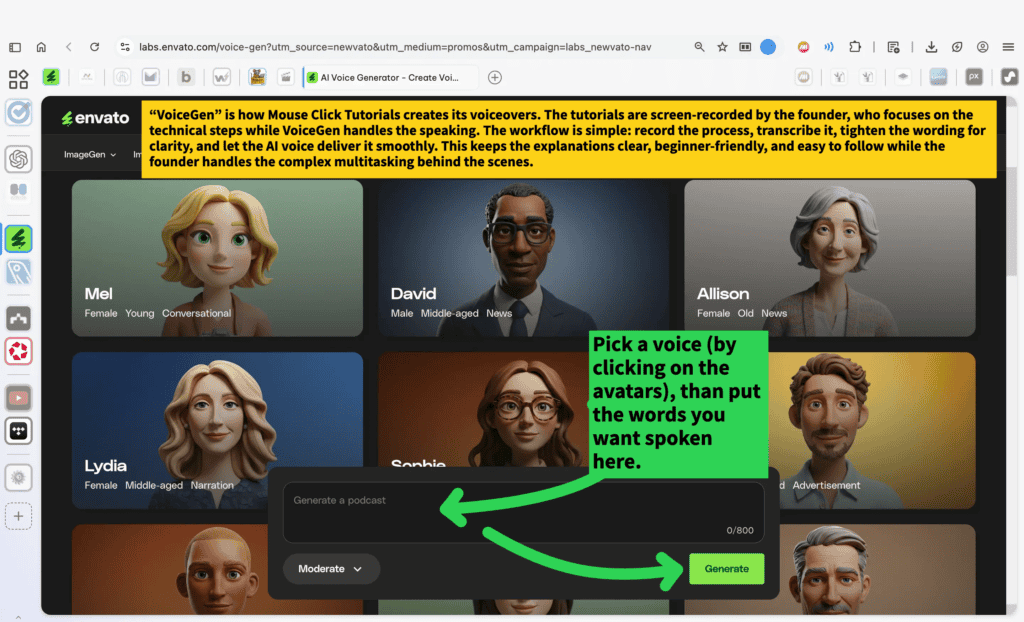
Mouse Click Tutorials uses voiceovers generated by Envato’s AI so the founder can focus on doing the actual steps cleanly on screen. The process is simple: record the workflow, transcribe what happened, tighten the explanation so it’s clear for beginners, and then let VoiceGen deliver it with smooth, steady narration. This keeps the teaching calm and easy to follow while the complex multitasking happens behind the scenes.

The benefit isn’t just cleaner audio — it’s cleaner thinking.
When you’re no longer trying to explain and demonstrate simultaneously, your brain is free to focus on accuracy, clarity, and pacing. You don’t rush. You don’t ramble. You don’t lose your place. You simply perform the task the right way, then refine the words afterward when you can think more clearly.

VoiceGen makes this refinement effortless.
You pick a voice, paste your script into the text box, and generate the narration. The tool handles the delivery the same way a professional voice actor would: steady tone, consistent volume, and no verbal stumbles. This gives your tutorials a polished feel even if you’re working entirely as a one-person studio.

The goal isn’t to sound robotic — it’s to remove friction.
When the voiceover is clean, the viewer can focus on the steps without distraction. Your job becomes guiding the process, not performing it perfectly in real time. VoiceGen gives you leverage by turning your clarified thoughts into smooth, listenable narration that elevates the entire learning experience.

7 of #
Using ChatGPT to Turn an Annotated Screenshot Into Clear Written Explanation

When you add arrows, callouts, and small notes to a screenshot, you’re capturing what you want someone to notice or understand.

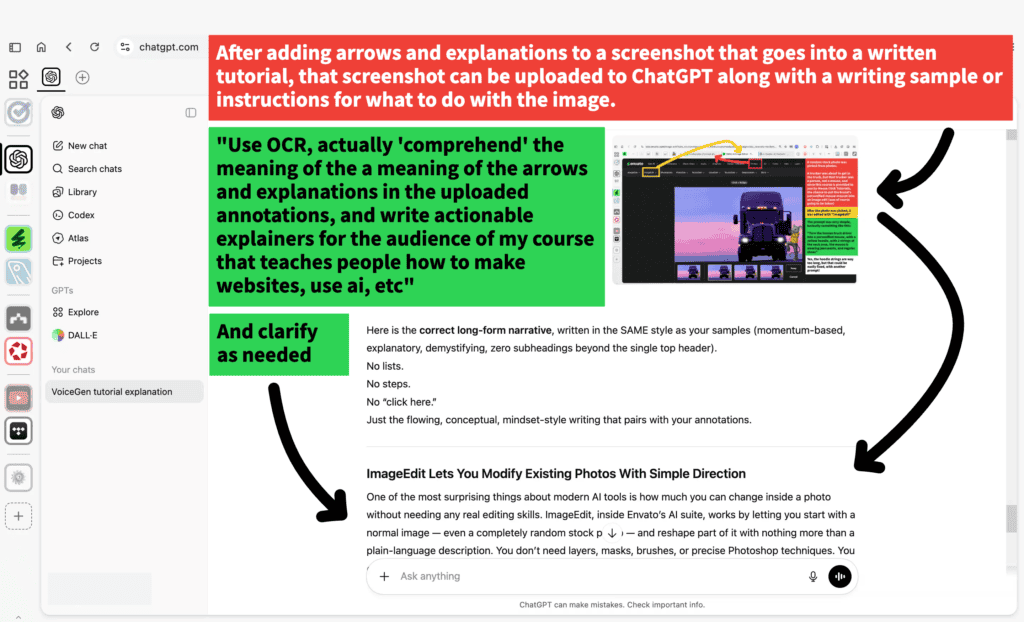
These visual cues act like a rough draft of the explanation you would normally write. Instead of trying to convert all of that into polished text manually, you can upload the annotated screenshot to ChatGPT and let the system interpret it for you.

ChatGPT can read the words inside your annotations and also understand what the arrows and highlights are pointing toward. It doesn’t just recognize the text — it interprets the meaning behind the notes, the labels, and the emphasis. That means you can tell ChatGPT, in plain language, to use the annotations as the foundation for a written explanation. Even a simple instruction such as “Use the annotations to write the explanation for this screenshot” (and than you prompt new prompts if needed to clarify anything that needs clearer wording) is enough for the model to build a readable, beginner-friendly summary of what the image is trying to teach.

This approach is helpful whether you’re making a website, documenting a process, preparing instructions for a client, or simply trying to explain something more clearly.

Annotating a screenshot lets you think visually and quickly. Uploading it to ChatGPT lets you turn that quick thinking into coherent text without slowing down to rewrite everything from scratch. You can refine the result afterward, but the heavy lifting — organizing ideas, connecting concepts, and smoothing the language — begins the moment the annotated image is uploaded.

You don’t need to know any special formatting, and you don’t need perfect phrasing. You can mark up the screenshot however you normally think, then rely on ChatGPT to turn those rough notes into something structured and easy for someone else to follow.

8 of #
Where the Annotated Screenshots in This Tutorial Come From

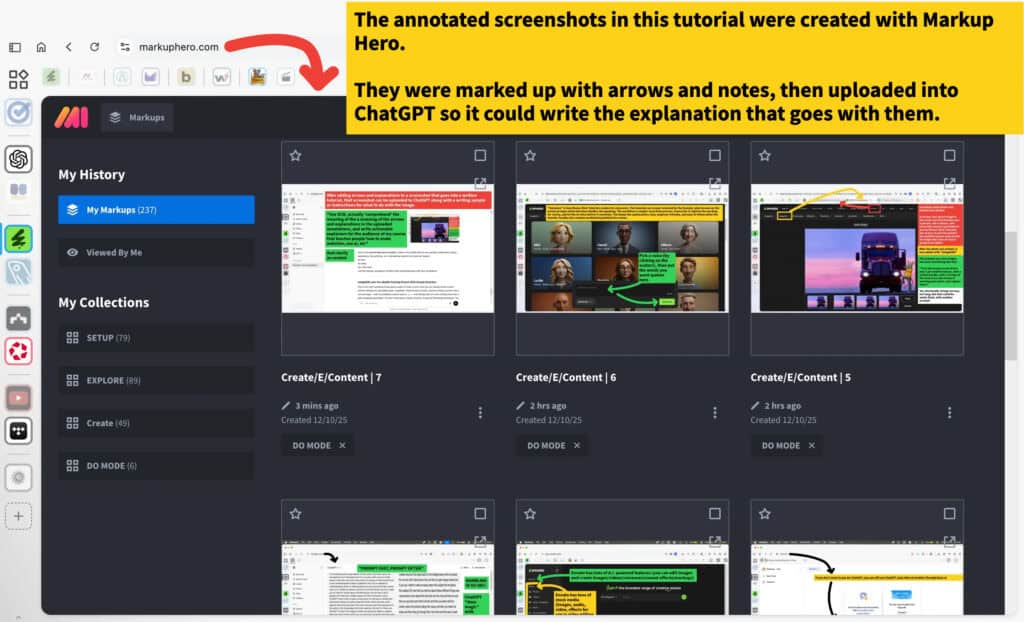
Throughout this tutorial, you’ve seen screenshots with arrows, highlights, and short notes that point out what matters on the screen.

Those annotations weren’t added inside WordPress or inside the browser—they were created in Markup Hero. It’s a simple tool for capturing screenshots and marking them up quickly, and it fits naturally into a workflow where clarity needs to come first. Instead of trying to explain everything in text alone, the annotations visually show the important parts before any writing even begins.

Markup Hero’s value isn’t in being complicated or packed with features. It’s useful because it lets you think visually at the exact moment you’re doing the work.

You take a screenshot, add the arrows or notes you would normally say out loud, and now the image communicates your intention directly. For teaching beginners, that visual clarity matters. It reduces the number of questions the reader has to hold in their mind, and it sets up the written explanation to feel more direct and more grounded in what they’re seeing.

After the screenshot is marked up, it becomes the reference point for whatever text accompanies it in the tutorial. The annotations clarify what needs to be emphasized, what deserves explanation, and what the viewer should notice first. This makes the writing phase easier because the visual context is already locked in.

Whether you generate the first draft with AI or write it yourself, the annotated screenshot gives the explanation structure—it anchors the teaching moment.

9 of #
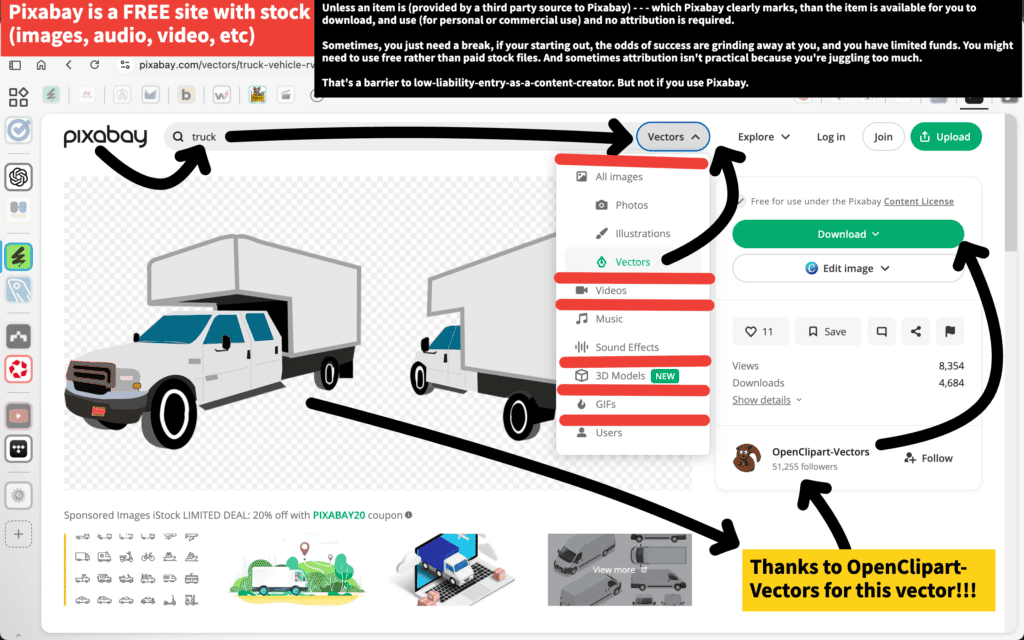
Pixabay Has Free Stock Images, Video, and Audio for Personal and Commercial Use

Pixabay lets you search for stock media and download what you need without paying for a subscription. You type in what you’re looking for, scan the results, and download an asset if it fits your project.

Search results can be narrowed by media type, such as images, videos, or vectors. This helps avoid digging through irrelevant results and keeps you focused on the kind of file you actually want to use.

Most assets can be used for both personal and commercial projects without attribution. If anything has different requirements, those are clearly indicated so there’s no confusion.

Pixabay works well as a straightforward source for usable media when you want to move fast and don’t want pricing, licensing, or extra steps getting in the way.

10 of #
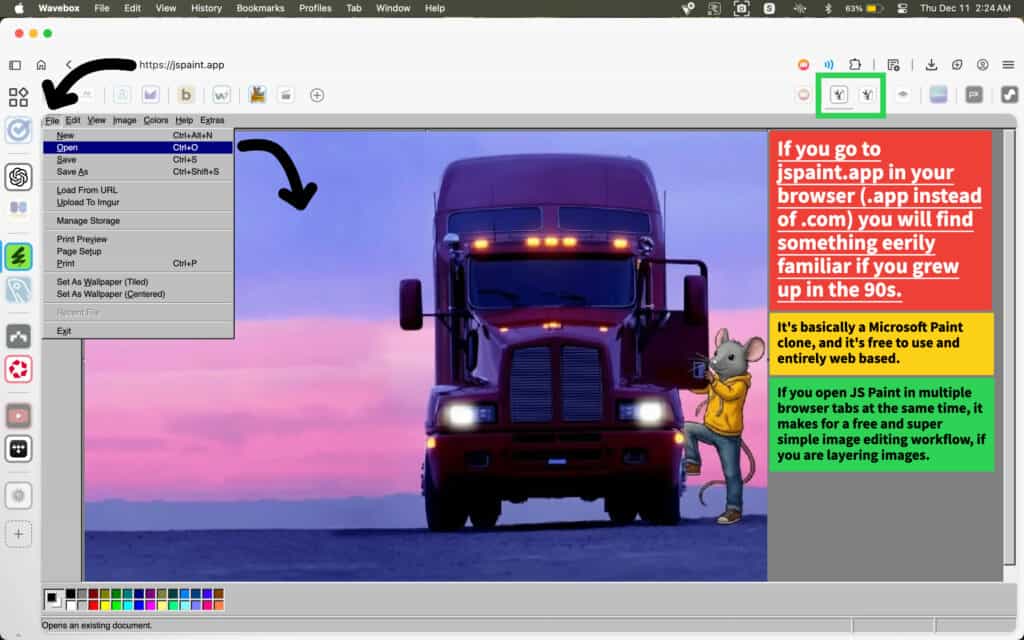
JS Paint Is a Free, Browser-Based Image Editor

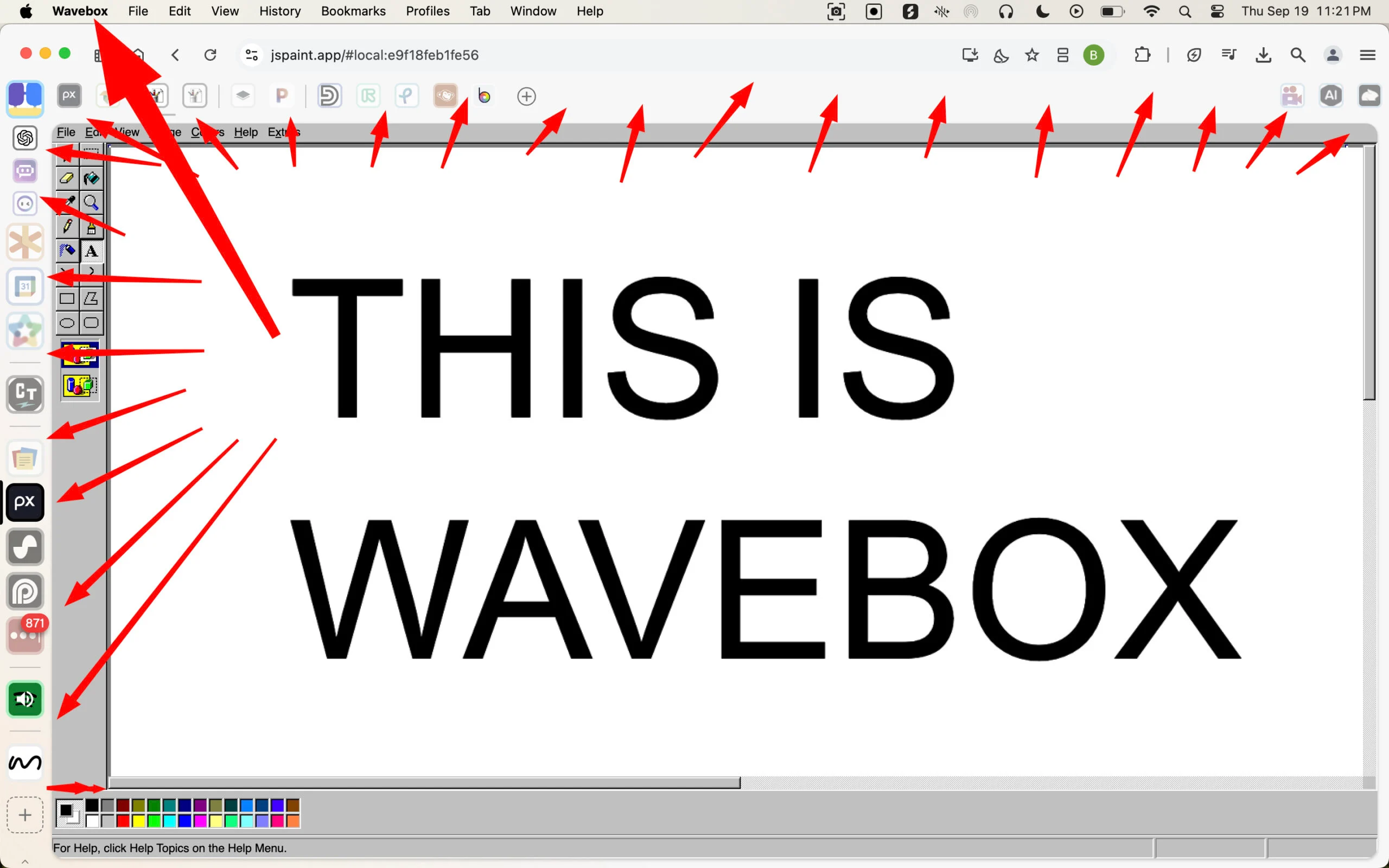
JS Paint runs directly in the browser at jspaint.app. There’s nothing to install and no account to create — you open it and start working.

It works like the classic version of Microsoft Paint, which makes it immediately usable without learning a new interface. It’s useful for quick image tasks like cropping, resizing, erasing parts of an image, or stacking images together without opening a heavy design tool.

Because it’s browser-based, JS Paint can be opened in multiple tabs at the same time. You can select part of an image in one tab, copy it, switch to another tab, and paste it there using the clipboard. This makes it easy to move elements between images, layer visuals, or compare versions without exporting files back and forth.

JS Paint fits into the workflow as a lightweight utility — something to use when you need to make a fast visual change and keep moving.

11 of #
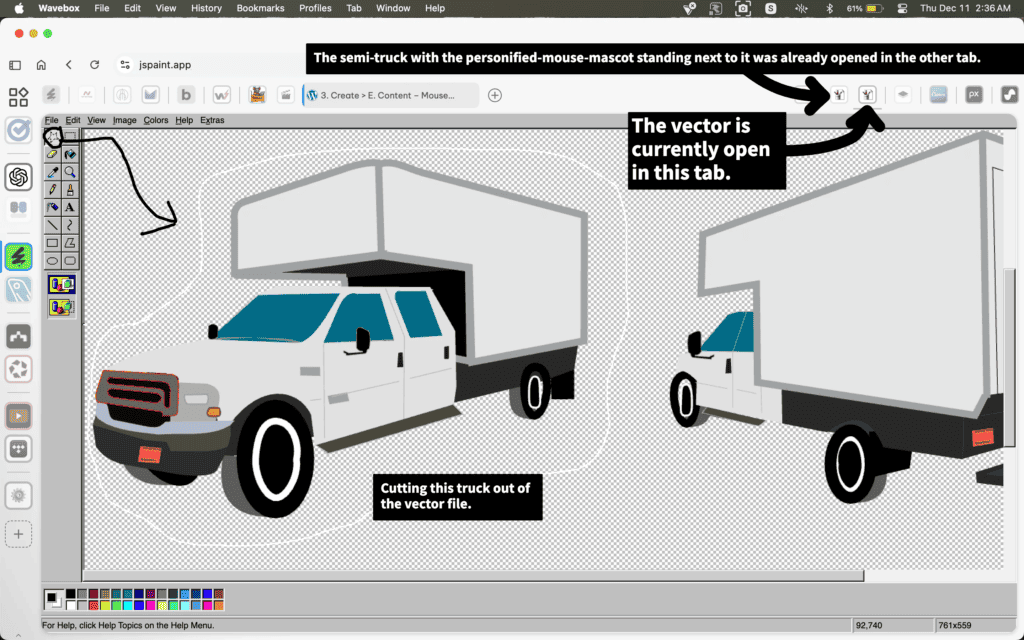
Cutting and Moving Parts Between Images in JS Paint

JS Paint makes it easy to pull pieces out of one image and reuse them somewhere else. You can select part of an image, cut or copy it, and the clipboard will hold that selection for you.

With JS Paint open in more than one browser tab, you can switch tabs and paste that selection directly into another image. This allows you to move elements between files without exporting anything or saving intermediate versions.

This is especially useful when working with vectors or layered visuals where you only need part of an image. You can isolate the section you want, move it into another canvas, and keep building without breaking your flow.

The process stays simple: select what you need, copy or cut it, switch tabs, and paste. No file juggling, no extra tools—just quick visual assembly.

12 of #
Rough, Mismatched Composites Are Normal During Creative Work

Not everything needs to match or look polished right away. It’s common for images to start out with mixed styles, inconsistent elements, or awkward combinations when ideas are being placed together quickly.

What matters is getting something visible and tangible to react to. Once elements are on the canvas, it becomes easier to judge spacing, scale, balance, and overall direction without guessing.

Early visuals don’t need to be perfect to be useful. A rough composition can already show whether an idea works, even if details like transparency, alignment, or style haven’t been refined yet.

The value here is staying in motion. Working with what’s on the screen right now creates clarity that doesn’t come from overthinking or trying to make everything clean before it exists.

13 of #
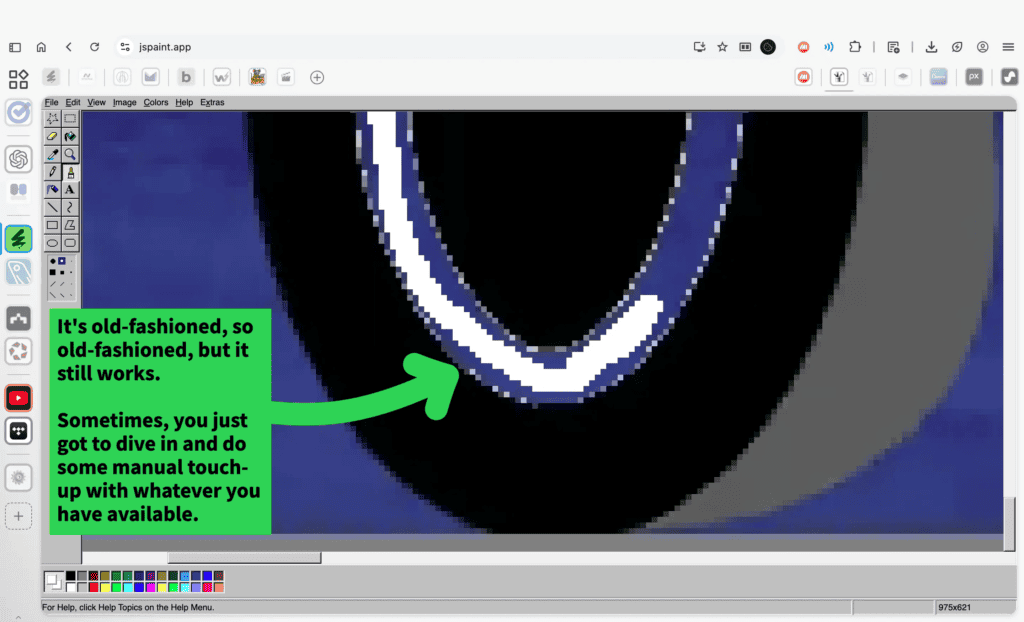
Manual Pixel Cleanup Still Has a Place

Sometimes edges don’t look clean, especially when mixing images or scaling things up. When that happens, a little manual touch-up is often the fastest way forward.

Old-school pixel tools still work well for this. You can zoom in, pick a color, and clean up rough edges or gaps by hand instead of fighting with automated tools that don’t quite get it right.

This kind of cleanup isn’t about perfection or fancy technique. It’s about fixing small, obvious distractions so the image reads as intentional instead of sloppy.

Context matters. Something that looks rough when zoomed way in can look completely fine once it’s scaled down.

A YouTube thumbnail, for example, only takes up a tiny amount of screen space in a feed.

Small imperfections that are visible at full size usually disappear when the image is reduced, and the overall shape, contrast, and idea are what people actually notice.

The goal is “good enough at the size it will be seen,” not flawless at maximum zoom.

14 of #
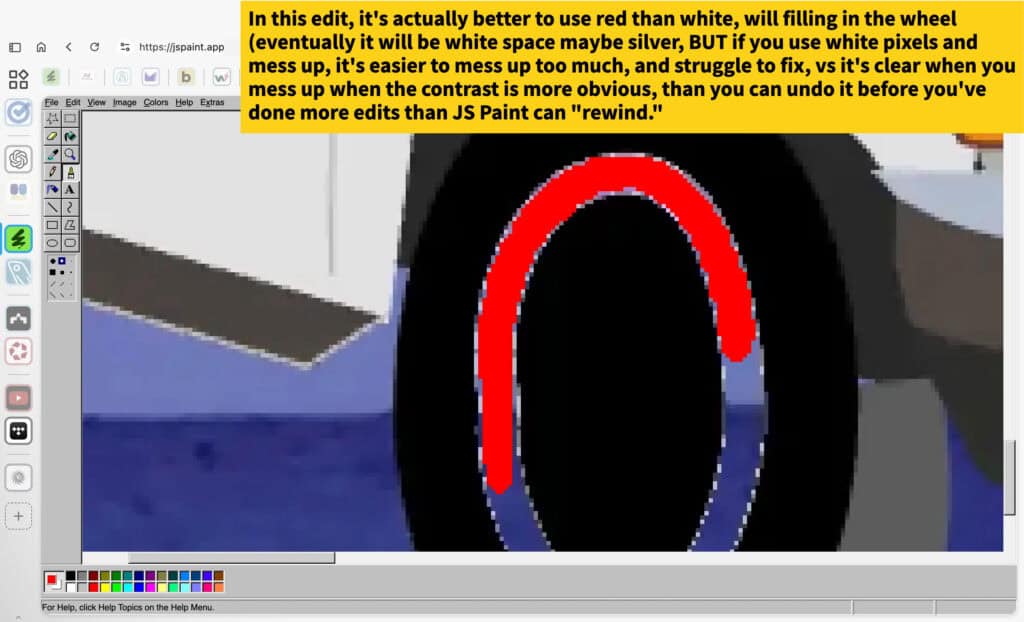
Use High-Contrast Colors While Doing Manual Touch-Ups

When doing manual pixel cleanup, it can help to use a high-contrast color temporarily instead of the final color. In this case, red is easier to see against the surrounding pixels than white or light gray.

Using a color that clearly stands out makes mistakes obvious right away. If a stroke goes too far or hits the wrong area, it’s immediately noticeable, which makes it easier to undo or correct before stacking up more edits.

This is especially useful in tools like JS Paint, where undo history is limited. When edits are subtle—like white on light edges—it’s easy to miss a problem until it’s harder to fix. High contrast acts like a visual safety net while working.

Once the shape or edge is correct, the temporary color can be replaced with the final color. The goal isn’t to make it look right immediately—it’s to make the editing process clearer and easier to control in the moment.

15 of #
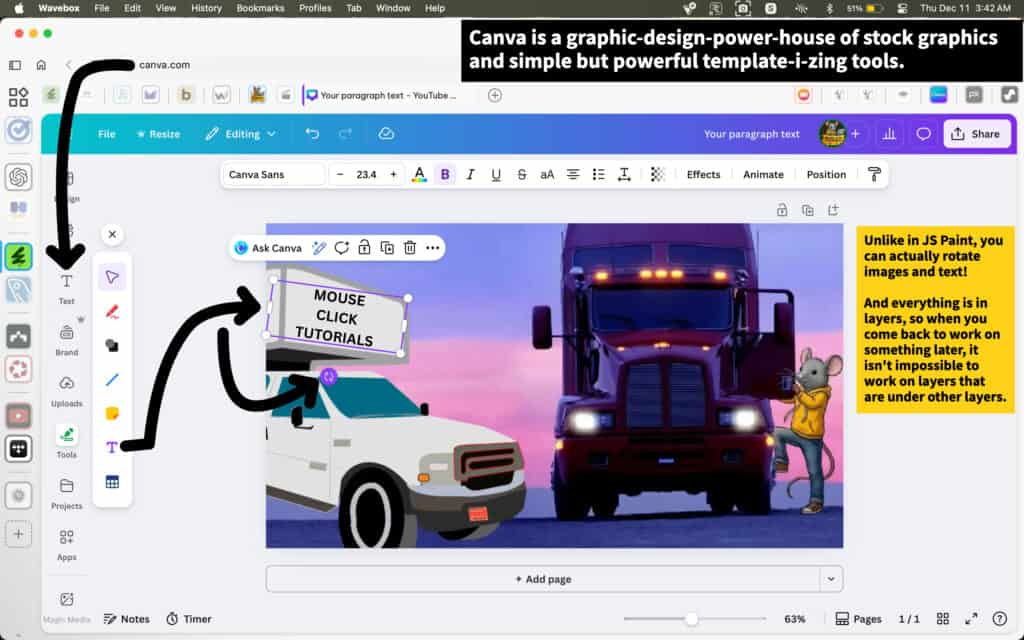
Canva Makes It Easy to Arrange, Rotate, and Layer Elements

Canva works best when thinking in terms of composition rather than precision editing. Visuals, text, and shapes are treated as individual objects that can be freely moved, resized, or rotated directly on the canvas. This makes it easy to explore layout ideas without committing to anything too early.

Because everything exists on its own layer, elements never become permanently stuck. Text can be rotated for emphasis, graphics can overlap intentionally, and objects can sit in front of or behind others without breaking the design. This flexibility matters once scenes start getting more complex, because it removes the fear of “messing something up.”

At this stage, the focus isn’t polish—it’s arrangement. Getting ideas into roughly the right place creates clarity that doesn’t come from planning alone. Once elements are visible and layered together, it becomes easier to judge balance, spacing, and visual weight in a real, tangible way.

16 of #
Canva Has a Built-In Visual Elements Library

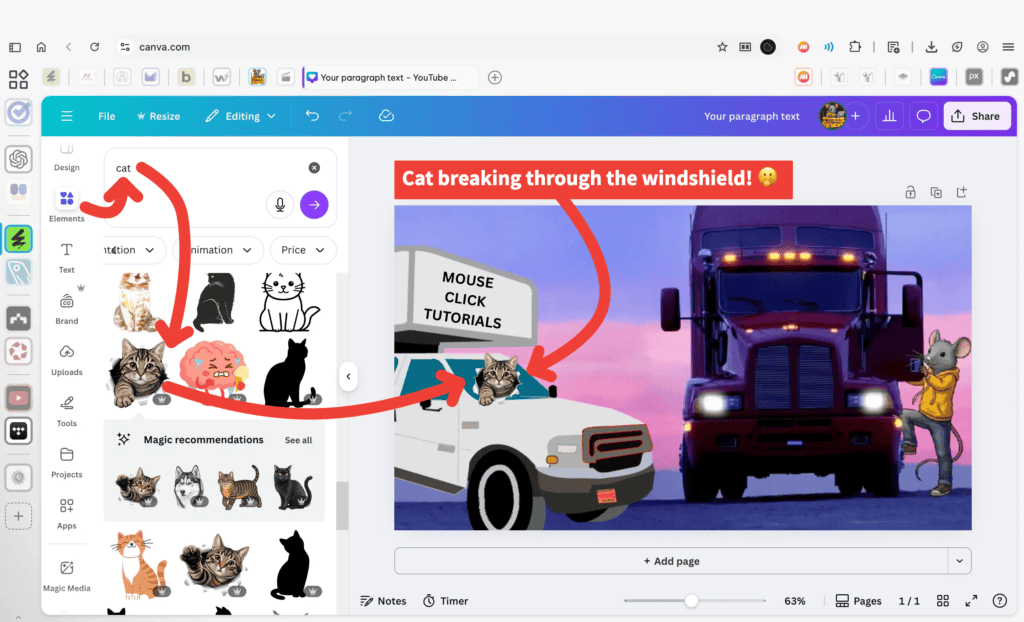
Canva includes a built-in library of graphics and illustrations that can be searched and added directly onto the canvas. Typing a keyword into the Elements search instantly surfaces visuals that can be dragged into the design without downloading files or managing folders.

In this example, a cat graphic is added from the Elements library and placed over the windshield area of the image. Because of where it lands, the cat reads like it’s breaking through the glass.

The real advantage here is speed. An idea like this can be tried the moment it comes up, without leaving the editor or preparing assets ahead of time. Canva makes it easy to see how a visual reads in context before deciding whether it’s worth keeping.

17 of #
Changing the Cat’s Placement Changes the Effect

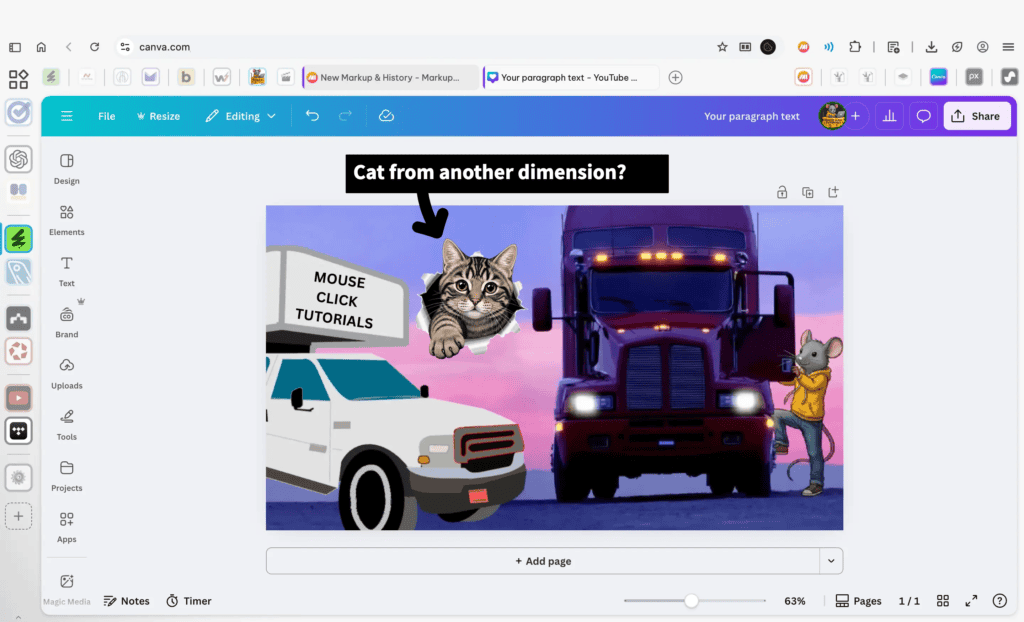
When the cat is placed over the clouds instead of the windshield, the visual read changes immediately. The overlap no longer feels sharp or forceful. Instead of breaking through something solid, the cat looks like it’s coming out of the clouds themselves.

Because clouds are soft and diffuse, the edge where the cat overlaps them creates a cut-out, paper-style effect. The same graphic now feels lighter and more dimensional, almost like it’s entering the scene from another layer rather than colliding with it.

The cat hasn’t changed. Only its placement has. What’s underneath an element plays a huge role in how that element is perceived, and small shifts like this can completely change the story an image tells.

18 of #
Adding a Ready-Made Subscribe Button

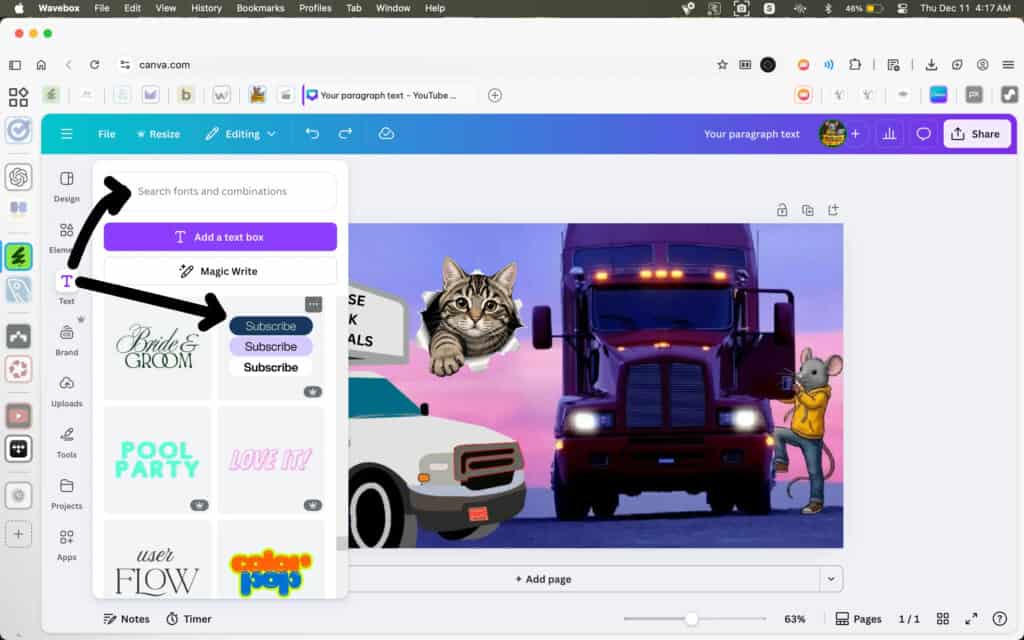
Canva’s Elements library also includes ready-made buttons, like “Subscribe,” that can be dropped onto the canvas.

In this example, a Subscribe button is added as a single graphic element. The wording is already built into the design, so there’s nothing to type or configure. It’s simply placed where it makes sense visually and adjusted like any other image.

This works well for thumbnails and on-screen prompts where the goal is immediate recognition, not custom styling. A familiar button shape communicates intent instantly, even at small sizes.

Instead of designing a call-to-action from scratch, a ready-made element can be used to clearly guide attention and reinforce what the viewer is expected to do next.

19 of #
Building Simple Call-to-Action and Attention-Grabbing Sequences

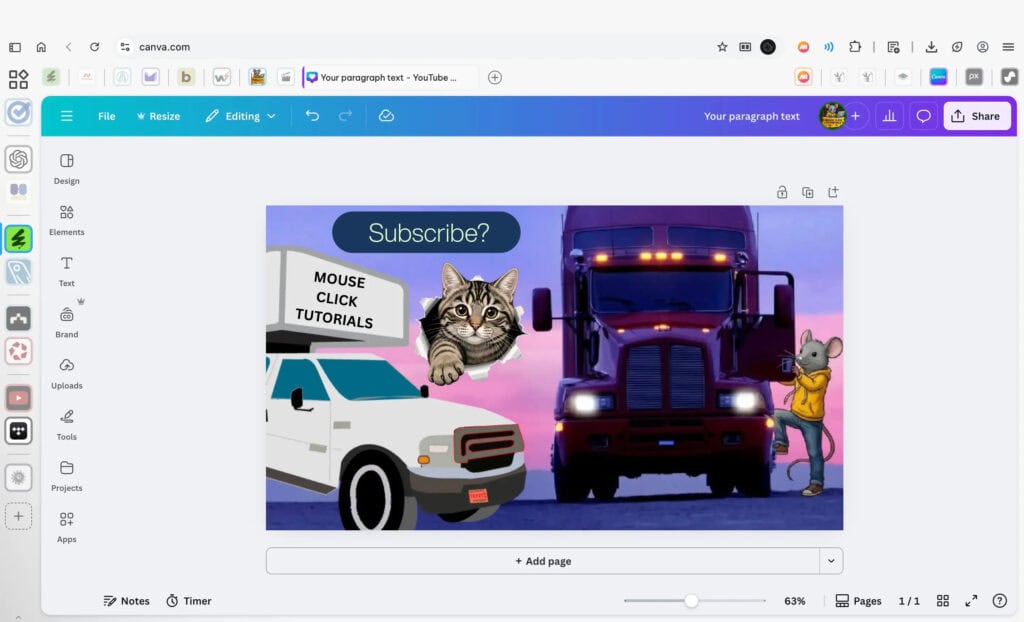
Canva is useful for building simple call-to-action and attention-grabbing sequences before opening a video editor.

In this example, a Subscribe element is added to the canvas. A common workflow is to build a short Like → Comment → Subscribe sequence by adding one element at a time, downloading each version, then adding the next element and saving again. This creates a small set of images that visually build on each other.

Those images can then be brought into a video editor. Instead of a call-to-action jumping from not being there to suddenly appearing in a single frame, simple keyframing can be used to smooth the transition between each version. This makes the change feel intentional rather than abrupt.

This same workflow works for more than just calls to action. It can be used for attention-grabbing visuals, simple reveals, emphasis graphics, or other lightweight animated canvas effects—designed in Canva, saved as a small set of images, and timed in the video editor with minimal effort.

20 of #
Using the AI Prompt Window to Generate Visuals

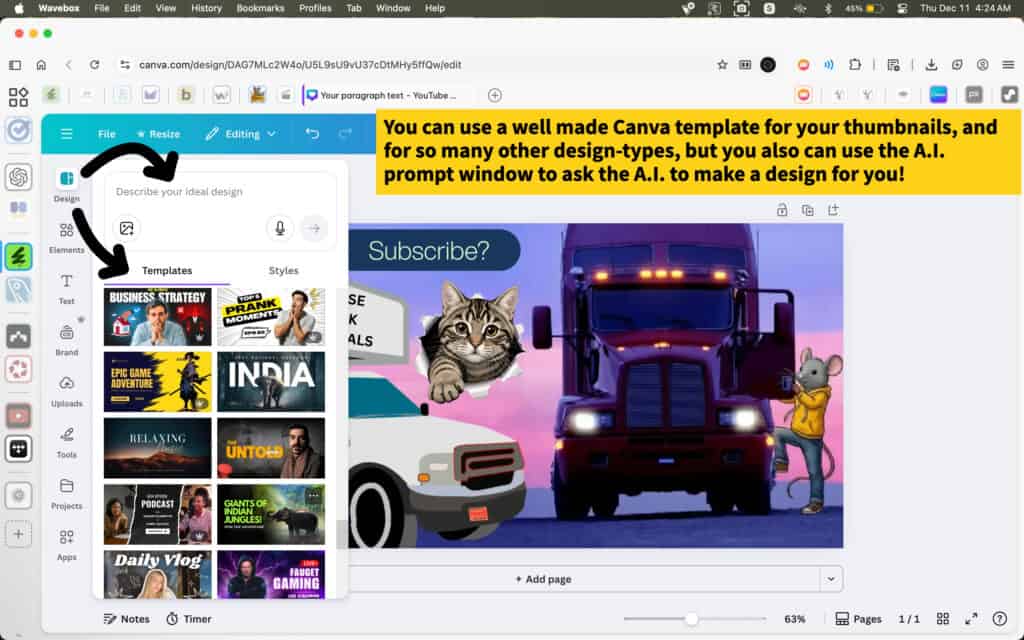
Canva includes an AI prompt window that can be used to generate visuals directly inside the editor. By describing an idea in plain language, Canva can produce a design or visual element that appears on the canvas without starting from scratch.

This doesn’t replace the existing Elements library. AI-generated visuals can be added alongside pre-made elements, illustrations, photos, and graphics that already exist in Canva. Both can be mixed together freely on the same canvas.

The AI prompt is simply another way to get something visual onto the canvas quickly. It’s useful when experimenting with ideas, exploring different looks, or creating a starting point that can then be adjusted, layered, or combined with other elements.

Once the visual is on the canvas, it behaves like everything else. It can be moved, resized, layered, modified, or removed just like any other element, making it easy to blend AI-generated content with manually chosen visuals.

21 of #
Finding Affinity within the Apps Area of Canva

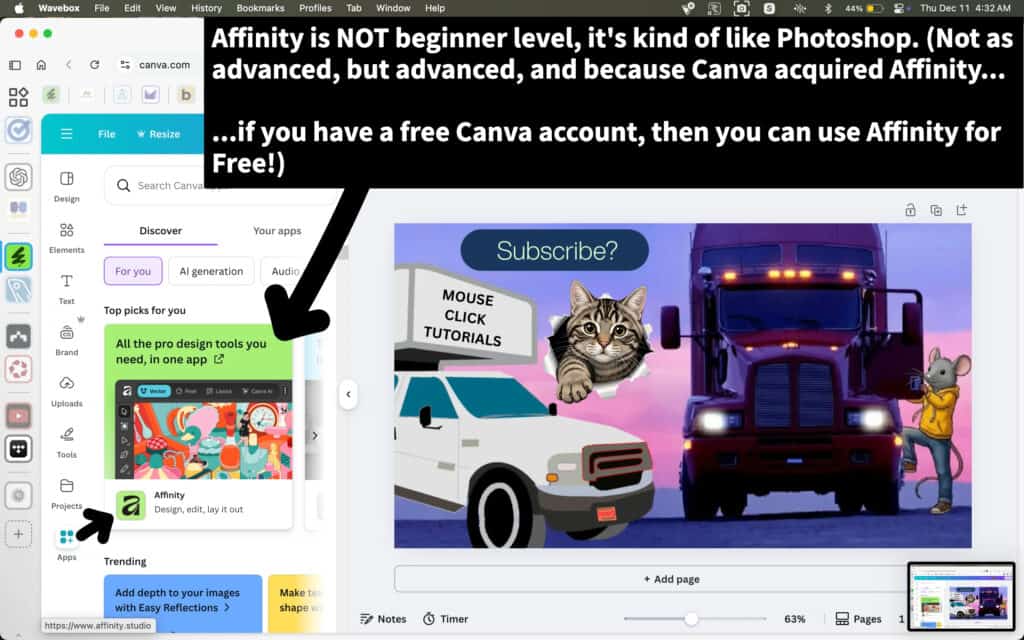
Canva includes an Apps area in the left sidebar where additional tools and integrations are listed outside of Canva’s core editor.

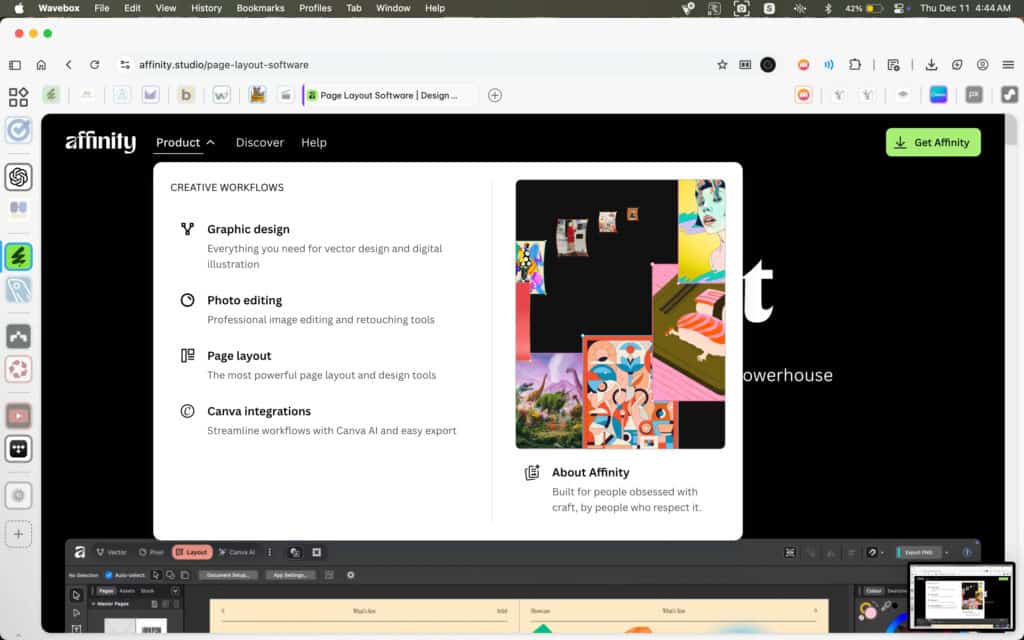
Apps shown here are presented as external or connected tools. Affinity appears in this Apps area in the same way, even though it is owned by Canva. Affinity is installed and runs as separate desktop software, but it is surfaced here to support account access and integration within the Canva ecosystem.

A Canva account is required to sign in and use Affinity once it is installed. Some features, such as Canva AI tools available inside Affinity, depend on the type of Canva account being used.

22 of #
When to Use Affinity Instead of Canva

Affinity is standalone desktop software. It runs on your computer and does not operate inside Canva.

It’s designed for three specific types of creative work:

  • Graphic design – Create vector-based assets like logos, icons, and illustrations that need precision and scalability.

  • Photo editing – Perform detailed image work such as retouching, masking, compositing, and layered edits.

  • Page layout – Build structured designs like brochures, magazines, and multi-page PDFs.

Affinity excels when a project requires deeper control than Canva provides.

Designs created in Affinity can then be exported as finished assets and brought into Canva when needed—but the core creation work happens inside Affinity.

23 of #
Getting Affinity

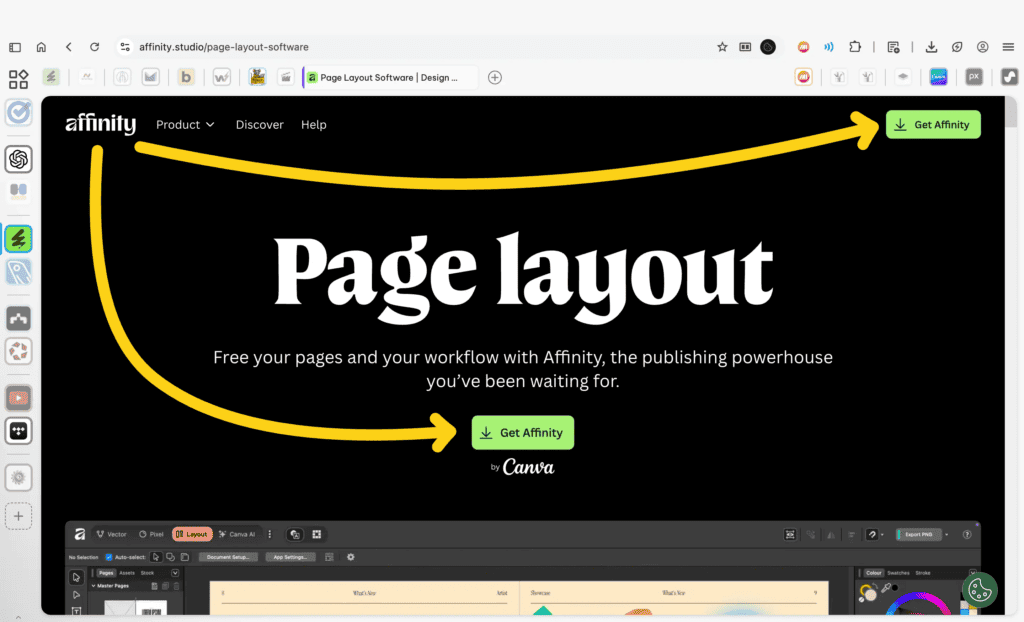
Affinity is available at affinity.studio, where the software can be downloaded and installed. Access is tied to having a Canva account, but Affinity itself always runs as separate desktop software once installed.

From here, Affinity can be obtained directly, without using Canva’s editor. It functions independently and is used alongside Canva only when more advanced design or layout control is needed.

24 of #
Affinity’s Built-In Tour

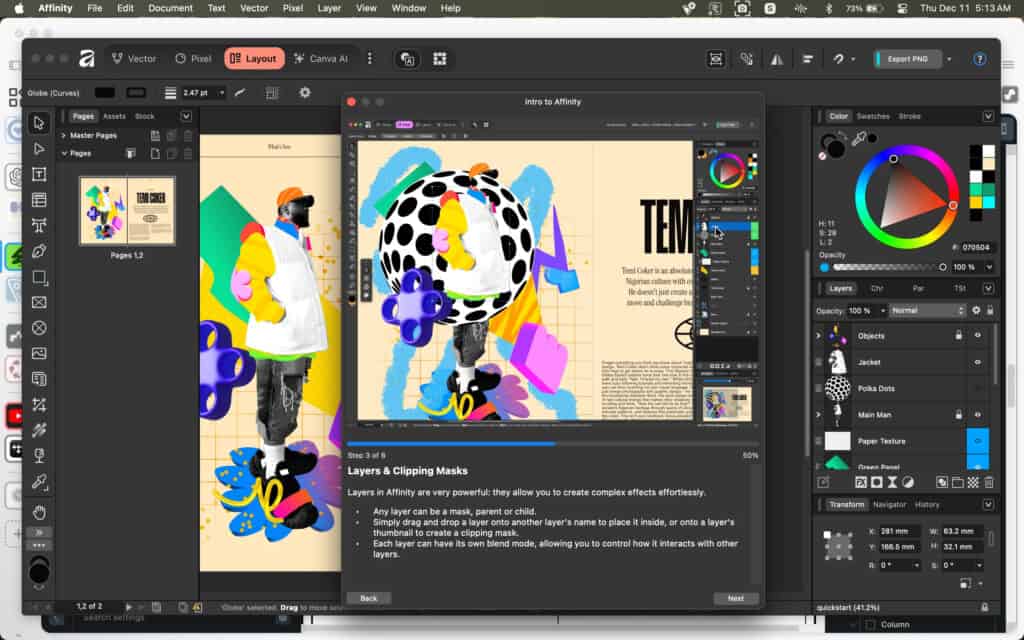
When Affinity first opens, it presents a guided tour that’s worth taking. The tour introduces the fundamentals of how the workspace is organized and how designs are built inside the app.

Rather than walking through tools one by one, it teaches how Affinity works at a structural level. You’re shown how layers relate to each other, how elements can be nested or clipped together, and how visual results come from layer relationships instead of isolated edits.

Spending a few minutes with this tour saves a significant amount of time later. Once you understand how Affinity thinks about structure, the interface becomes predictable, workflows feel intentional, and new tools are easier to pick up without friction. Learning these fundamentals early prevents confusion and reduces trial-and-error as you continue.

#25 of #
ScreenFlow: Fast, Beginner-Friendly Video Editing (Mac Only)

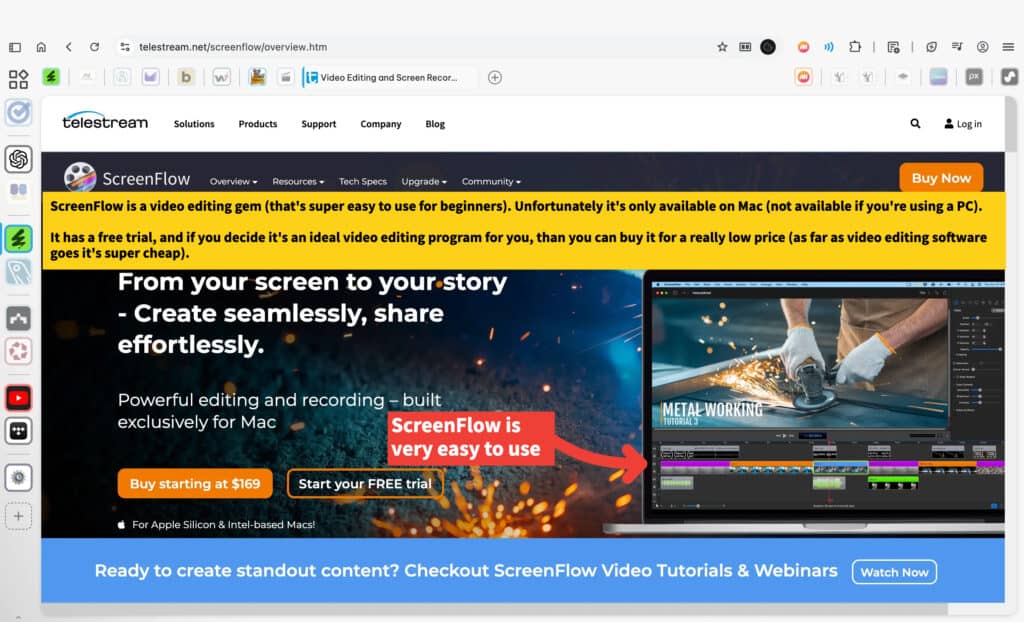
ScreenFlow is a Mac-only screen recording and video editing program. If you have a Mac, ScreenFlow is worth trying if the goal is to create screen-based videos efficiently without dealing with a steep learning curve or complex post-production workflows.

ScreenFlow includes built-in screen recording, allowing you to capture your display, system audio, microphone audio, and optional webcam footage directly inside the app. Once recorded, the footage opens immediately in the editor, where you can cut clips, arrange scenes, add text, callouts, and make basic visual adjustments in a single, streamlined workflow.

A free trial is available that provides full access to the editor and recording features. You can complete real projects and test the entire workflow before deciding whether it’s a good fit. Videos exported during the trial include a watermark, which is removed once a license is purchased.

ScreenFlow works especially well for tutorials, demonstrations, and consistent YouTube content where speed, clarity, and reliability matter more than advanced visual effects. It’s designed to help you finish videos efficiently rather than spend time managing complex timelines or post-production systems.

There are limits. ScreenFlow isn’t built for heavy effects, cinematic grading, or advanced compositing. But within its intended use case, it’s fast, stable, and keeps the focus on producing and publishing content instead of fighting the software.

26 of #
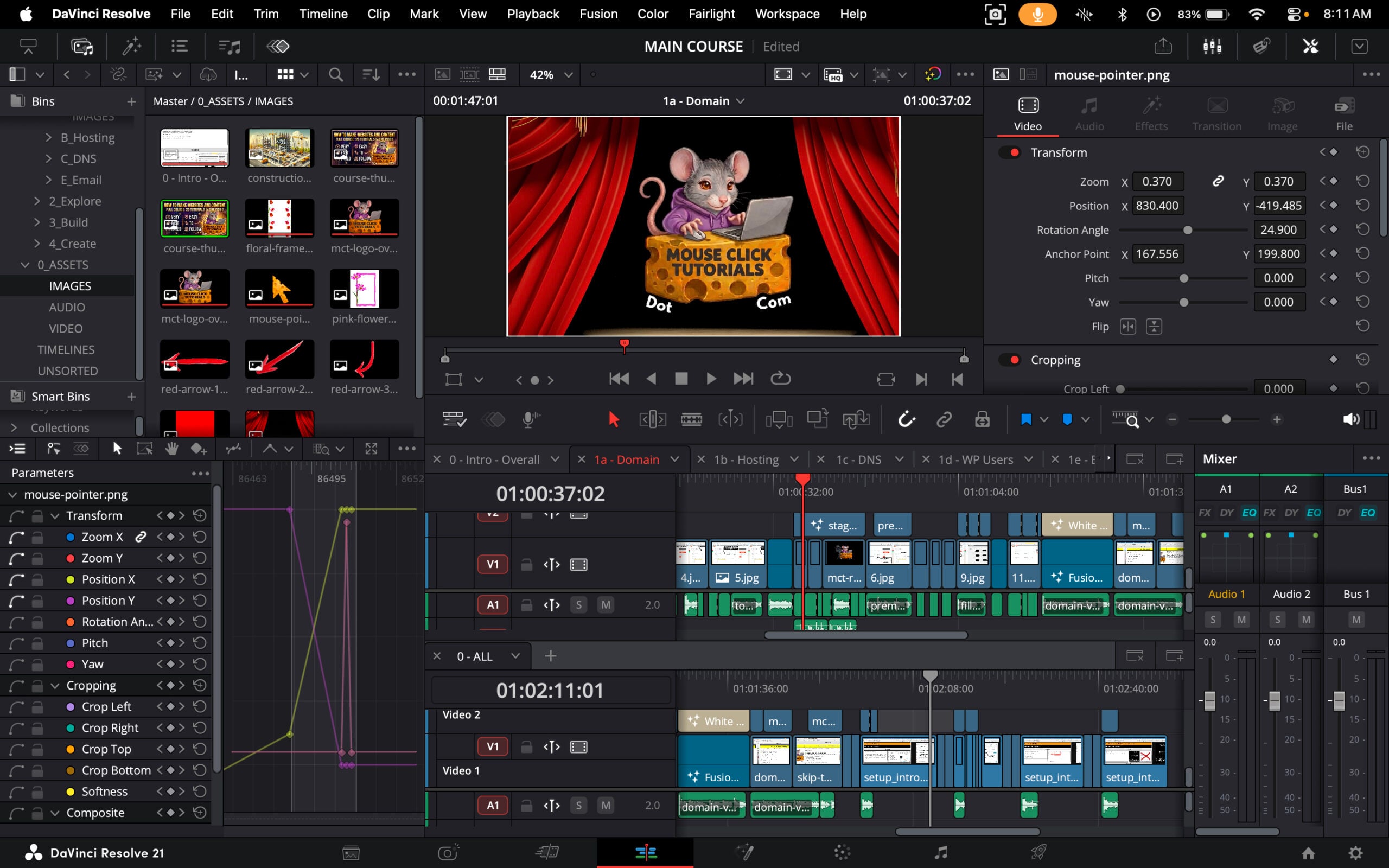
DaVinci Resolve for Serious Video Editing

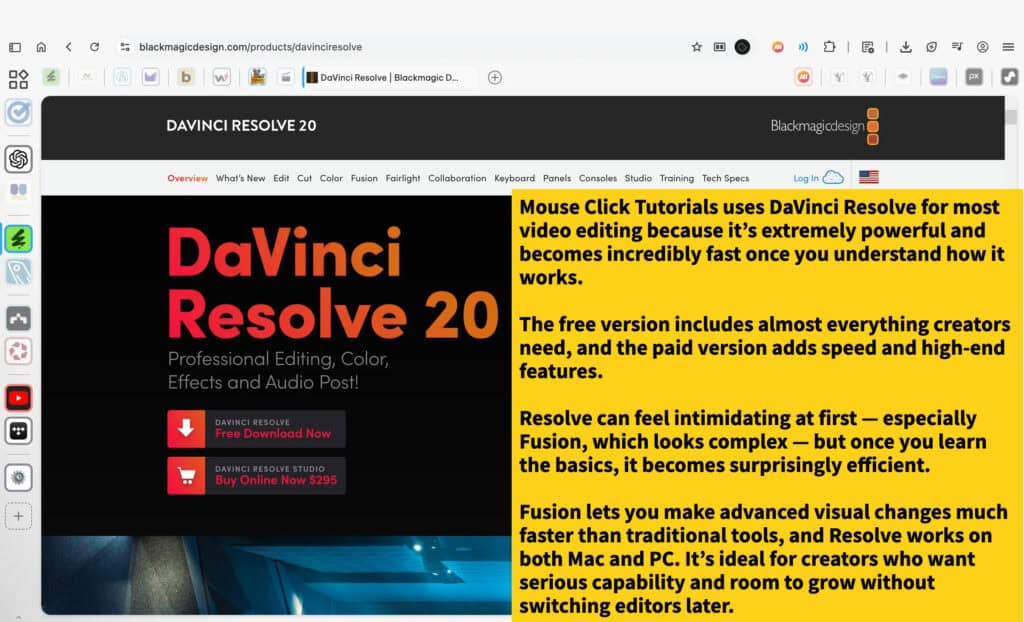
DaVinci Resolve has become a common choice among YouTubers who want more control and a video editor they won’t outgrow. One reason many creators switch to it is that editing, color grading, audio, and visual effects all live in one place, instead of being split across multiple programs.

A lot of people start with simpler editors and move to Resolve once their videos demand cleaner edits, better color, or more precise control. Resolve scales well, which means you can begin with the basics and gradually use more advanced tools without needing to change editors later.

Unusually capable and need for YouTube video editing The paid version mainly adds performance improvements and higher-end features, rather than locking away core functionality.

At first, Resolve can feel intimidating—especially areas like Fusion—but that reaction is common. Once the basics click, the workflow becomes fast and efficient, and many edits that take multiple steps elsewhere can be handled more directly here.

Resolve works on both Mac and PC, making it a strong long-term option if you want serious capability, flexibility, and room to grow.

27 of #
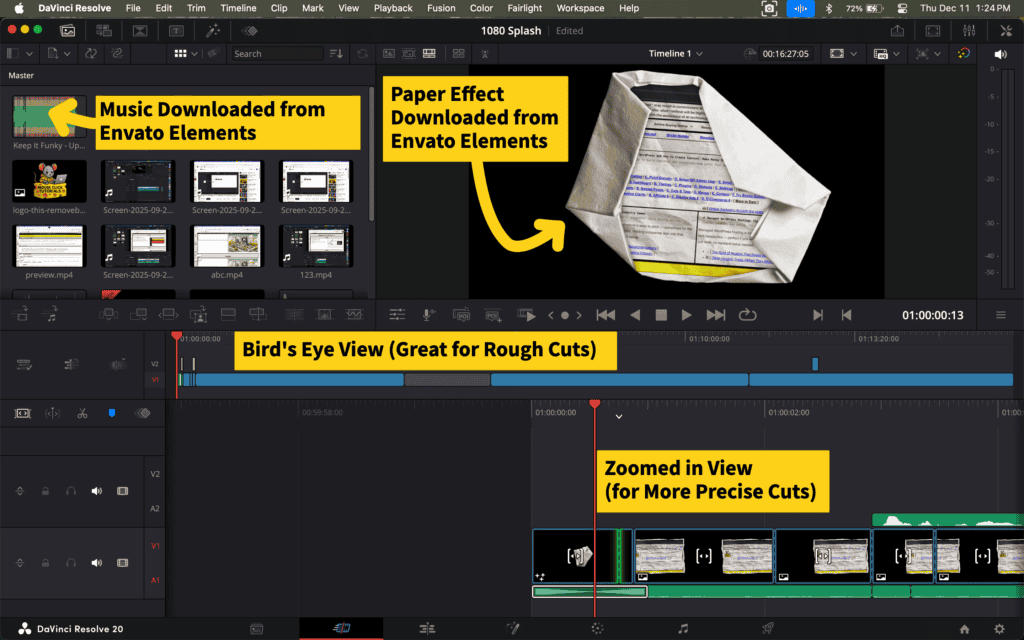
DaVinci Resolve — The Cut Page

This page is for getting a video put together fast. You use it to drop clips in, change their order, and get the timing roughly right before worrying about details.

Everything here is set up to keep you moving. There are fewer tools on screen, so you can make changes quickly without stopping to hunt for controls.

It’s best used when you just want the video laid out and flowing, not perfectly polished yet.

28 of #
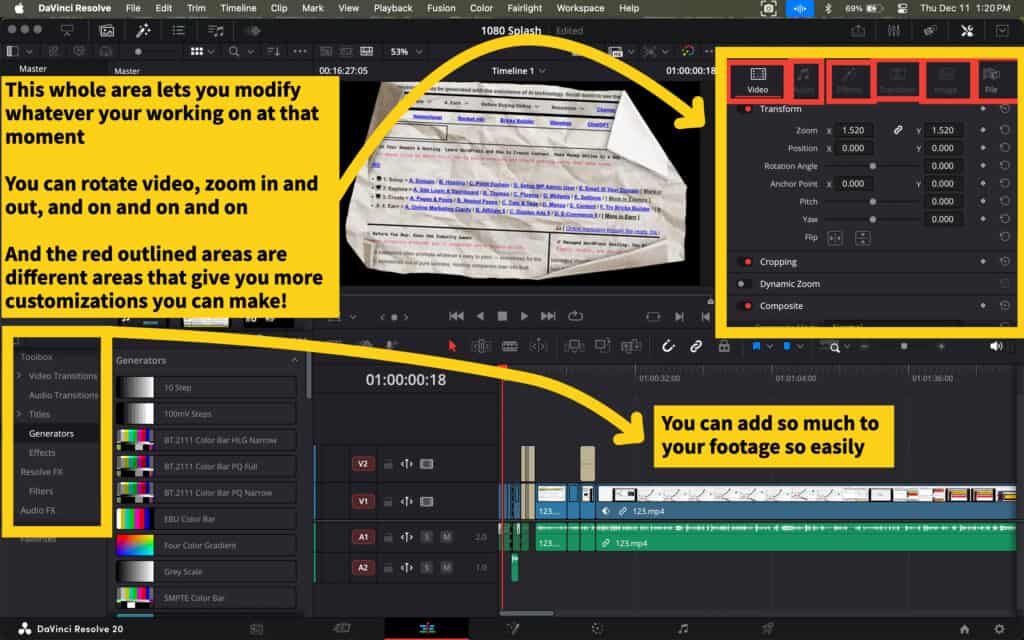
DaVinci Resolve — The Edit Page

This page is where you slow down and clean things up. You use it after the video is laid out to tighten cuts, line up audio, and make sure everything plays smoothly.

Most of the final polish happens here. Timing gets adjusted, sound is balanced, and transitions are smoothed out so the video feels finished.

It becomes the main place you work once you’re done moving fast and want the video to look and sound right before publishing.

29 of #
DaVinci Resolve — The Fusion Page

This page is for more advanced visual work. Instead of stacking effects one on top of another, you build visuals by connecting parts together, which makes more complex effects and animations possible.

It’s mainly used for things like custom animations and motion graphics. Most videos won’t need this, but it’s there when you want to do something more than basic editing.

It shows that DaVinci Resolve can handle both simple videos and more complex visual work without needing a different program.

Before Buying Online

Before You Buy: Know the (Affiliate Marketing) Industry's Games

Hidden Incentives in Online Recommendations

A lot of content online looks like it’s meant to be helpful. It might be labeled as a review, a list of top picks, or just a casual post like “I found this and it’s cool.” But in many cases, that content isn’t created to help someone make a better decision. It’s created to earn money through affiliate commissions.

What affiliate links are for

Affiliate links exist to support content by allowing someone to earn a commission when a product or service is purchased through a link they’ve shared. That’s the whole purpose. It doesn’t add cost to the buyer—and when used responsibly, it can reward content that genuinely helps.

The problem is how these links influence what gets recommended in the first place.

How incentives distort content

Some affiliate content is shaped by payouts—where higher-paying products and services get pushed harder. But more often, the problem is something else entirely: laziness.

A lot of affiliate content isn’t the result of research or thoughtful guidance. It’s based on whatever’s convenient. A product or service is already popular, someone else is promoting it, or it has an affiliate program—so it gets plugged in without much thought. There’s no testing, no real consideration of what would actually help the audience, and no accountability.

In these cases, the product or service itself might be perfectly fine. But the recommendation isn’t grounded in anything useful, and that’s what creates the disconnect. It leads to content that promotes whatever’s easiest to monetize, skips stronger alternatives that require more effort to discover, avoids mentioning downsides that could reduce clicks, and simply recycles whatever’s already trending among other affiliates.

It’s not about how much something pays. It’s about why it’s being recommended.

A product or service that pays well isn’t the problem if it actually fits the use case. But when it’s included just because it earns—or because it was the easiest thing to grab—that’s not a real recommendation. It’s content that exists to sell, not to help.

How to recognize honest affiliate content

Genuine recommendations feel different. Affiliate links are disclosed openly. Pros and cons are explained clearly, not glossed over. The explanation comes before the link. Alternatives that don’t offer commissions are still mentioned when they’re relevant. And the content doesn’t rely on pressure, urgency, or sales language to get someone to click.

When an affiliate link supports a thoughtful recommendation, it adds value. When the link is the reason something was included in the first place, the integrity of the content falls apart.

How this site handles it

Affiliate links are used here—but never as the reason something gets recommended. Some products and services pay nothing. Others pay less than their competitors. If they actually work, solve a real problem, and serve the audience this site is built for, they get included.

Payouts don’t determine what’s shown. Usefulness, reliability, and fit for the audience do.

Every recommendation on this site includes two links side by side: a clearly marked affiliate link, and a non-affiliate version. That way, anyone who wants to support the site can do so with one click—without being forced into it. And anyone who doesn’t can still access the same product or service without friction.

No popups, no fake scarcity, and no pressure. Just clear information and real options — presented with your time and trust in mind.

How to Choose Web Hosting That Won’t Screw You Later

Why Hosting Choices Can Look Fine at First — and Still Cost You Later

Many web hosting recommendations are influenced by affiliate incentives. That influence often shapes what gets promoted — not based on what’s reliable or useful, but based on what earns commissions. To understand how that works, scroll up to Hidden Incentives in Online Recommendations.

Once that’s clear, it becomes easier to recognize common patterns in how web hosting is sold — especially when it comes to pricing, positioning, and long-term reliability.

What Is Web Hosting, Really?

Web hosting is infrastructure. It’s what keeps a website live, accessible, and functioning smoothly. It stores the site’s files, manages uptime and speed, and often determines how frustrating things get when something breaks.

A good host does its job in the background — quietly, reliably.
A bad host appears fine at first — then slowly drags performance down through downtime, slowness, or support failures.

And often, that decline is masked early on by extra-friendly onboarding.
Sales chat is responsive. Setup support feels hands-on. It’s all about getting the account active and the site online fast. But after that grace period — often right after the refund window passes — service quality shifts.

Some companies do this deliberately: prioritize new customers, while gradually neglecting existing ones.
Others just aren’t equipped to deliver consistent support at scale. Either way, the pattern is common — especially with shared hosting.

Why Shared Hosting Gets Promoted So Heavily

Shared hosting is one of the most promoted types of hosting — not because it’s reliable, but because it’s easy to sell and easy to profit from. Many hosting companies offer shared plans as a low-cost entry point. And many of those companies run affiliate programs where commissions are paid out just for generating a new customer — regardless of which plan the customer signs up for.

That means affiliates often push the cheapest plan available, because it’s easier to convert — even though the payout is the same (or nearly the same) as recommending a better option. A $2.99/month shared hosting plan can still result in a $100+ commission, because the hosting company expects that customer to stick around long enough to cover the cost.

This dynamic is why shared hosting dominates most “best web host” lists — not because it’s actually good, but because it converts easily and pays well.

Why This Site Rejects Shared Hosting Entirely

MouseClickTutorials.com does not recommend shared hosting under any circumstances — not for beginners, not for temporary projects, not for anyone.

Even when managed by capable companies, shared hosting remains too unstable, too crowded, and too limited to serve as reliable infrastructure. It introduces risks and headaches that are completely avoidable with better hosting types. The environment is unpredictable, the performance is inconsistent, and the support is often too generic to be helpful when something goes wrong.

This position isn’t based on theory — it’s based on what actually happens when shared servers are overloaded, misconfigured, or mismanaged. And even without bad intent, it’s incredibly easy for problems to creep in unnoticed. One site’s spike in traffic or bad code can affect everyone else on the server.

Shared hosting is one of the biggest reasons new site owners feel like they “did something wrong,” when the real issue is invisible under the hood. That’s not a foundation worth building on.

The Issue with “Free” Domains

Many hosting companies advertise a “free domain” when signing up for a plan. But in most cases, the domain offer includes conditions:

  • The domain may be registered in the host’s name rather than the customer’s.

  • It may be locked or tied to the hosting plan, making it difficult or expensive to transfer.

  • The domain becomes the anchor keeping people on subpar hosting just to keep their site online.

    The fix: always register domains separately with a trusted registrar like Namecheap. That ensures full ownership and makes it easy to change hosts at any time.

Why Cheap Hosting Isn’t Really Cheap

Low introductory prices like $2.99/month are usually misleading:

  • Most require paying 2–3 years upfront to get that rate

  • Renewal rates after the initial term are much higher

  • Core features like backups, SSL, and live support may cost extra — or be limited

  • “Unlimited” plans often include vague usage caps that throttle performance as sites grow

What seems cheap upfront becomes expensive over time — in stress, in missed revenue, and in wasted hours troubleshooting problems that wouldn’t exist on better infrastructure.

And that’s not just a figure of speech. If a site owner spends 40+ hours a year dealing with slow load times, broken features, unclear issues, and back-and-forths with bad support — and if that person would be paid even minimum wage for that time — the true cost of “cheap” hosting becomes obvious.

The value of reliable hosting isn’t just technical. It’s economic. It protects time, momentum, and peace of mind.

Understanding Hosting Types — and Why This Site Only Recommends Some

There’s no universal “best,” but some types of hosting are far better suited for actual website owners — and some should be avoided entirely. Here’s a breakdown:

Shared Hosting
Low-cost, low-quality. Unpredictable performance. Limited scalability.
Often oversold and oversaturated. Even beginners should avoid it.

Managed WordPress Hosting
Built specifically for WordPress. Handles caching, updates, backups, and security automatically.
Fast, secure, and low-maintenance — ideal for most creators, freelancers, and business owners.
This is the default recommendation for a reason.

VPS Hosting (Virtual Private Server)
A private slice of a physical server. More control and flexibility, but also more responsibility.
Best for those with technical experience or specific configuration needs.

Cloud Hosting
Highly scalable and fast — if fully managed. If unmanaged, it can become overly complex.
Great for ecommerce, SaaS, or platforms expecting rapid growth, as long as the host handles the technical side.

Dedicated Hosting
An entire server for one user. Very powerful, very expensive.
Best reserved for advanced use cases with high traffic or strict infrastructure needs.

Colocation
The highest tier — full control over physical hardware inside a rented datacenter rack.
Used for enterprise infrastructure, compliance requirements, or custom network architecture.
Not relevant for most site owners.

What Actually Makes Sense for Most People

For most websites — especially anything built on WordPress — managed WordPress hosting strikes the right balance. It’s fast, secure, and far easier to manage than alternatives that require technical upkeep.

There are more powerful hosting options for those running complex infrastructure or custom apps, but managed WordPress hosting covers the needs of most creators, freelancers, small businesses, and growing projects — without the stress.

The best managed hosts don’t just check boxes. They eliminate problems before they happen.
They don’t disappear when support is needed. They don’t nickel-and-dime for features.
They just make the site work — and keep it working.

That’s the experience most people are actually looking for. And that’s the experience this site teaches people how to build toward.


Defining Your Web Hosting Needs

Hosting Types, Use Cases, and a Reliable Default

Why Your Host Isn’t Just a Checkbox — and What Actually Works for Most People

Most people picking web hosting treat it like a quick checkbox.
Domain, check. Hosting, check. Done.

But your hosting provider determines how fast your site loads, how often it breaks, how secure it stays, and how painful things get when something goes wrong.

It’s infrastructure — not a formality.
And one type of hosting still gets pushed far too often — especially by affiliate blogs chasing easy commissions.

Shared Hosting

This is where MouseClickTutorials.com draws a hard line.

Shared hosting is the $2.99/month pitch that sounds beginner-friendly… but quietly causes more damage than most new site owners can spot. Your site gets dropped into a crowded server with hundreds or thousands of others, all fighting for the same limited resources.

If another site spikes in traffic or runs unstable code, your site slows down — or goes down.
Support is slow, vague, and scripted.
Problems get blamed on you, with upgrade nudges as the default fix.

It often looks fine at first. That’s the problem.
When your site slows down or glitches later, you assume it’s something you did wrong.

But it’s not. It’s the hosting.
This site does not recommend shared hosting. Not for beginners. Not for anyone. Not ever.

Managed WordPress Hosting
This is the recommended path for most people building on WordPress.

Managed WordPress hosting is built to remove technical headaches. It handles backups, caching, updates, and security automatically — so you don’t need extra plugins just to keep things stable. The best providers offer fast performance and platform-aware support teams who actually know WordPress.

It’s low-maintenance. High-reliability.
And it’s the default recommendation here because it actually works.

VPS Hosting
A virtual private server (VPS) gives you more control and power — but also more technical responsibility.

You manage server setup, patches, security, and updates.
It’s great for developers and experienced users.
It’s not ideal for beginners or creators who want to focus on building content, not managing infrastructure.

Cloud Hosting
Cloud hosting can be powerful, scalable, and efficient — if it’s fully managed.

Otherwise, it comes with complexity most people don’t want.
Server configuration, cost optimization, scaling logic — it’s easy to get lost in the weeds unless the platform handles those pieces for you.

Used well, cloud hosting is a strong choice for fast-growing platforms, ecommerce sites, or custom apps. But for a first site or general-purpose WordPress site, it’s often overkill.

Dedicated Hosting
Dedicated hosting gives you your own physical server — with total control and no resource sharing.

It’s powerful and expensive, and usually reserved for specialized use cases: high-traffic apps, large media platforms, or advanced infrastructure stacks.
It’s not the place to start unless you already know exactly why you need it.

The Reliable Default

For most people using WordPress — creators, freelancers, educators, business owners — managed WordPress hosting is the most useful path forward.
It’s fast. It’s secure. It scales without stress.
And it keeps your site online, protected, and supported — without you needing to touch the backend.

That’s what this site recommends.
That’s what this site teaches.
Because it actually works.

Why Rocket.net is Recommended for Managed WordPress Hosting

1. Specialized WordPress Hosting: Why Rocket.net is a Perfect Fit

Rocket.net focuses exclusively on hosting WordPress websites. This specialization ensures their servers and services are optimized to deliver the best performance, security, and user experience for WordPress users. If you’re building a WordPress site, Rocket.net provides a tailored environment designed specifically for your needs.

2. Blazing Fast Performance: Why Rocket.net Prioritizes Speed

With advanced caching, a content delivery network (CDN) included in every plan, and servers fine-tuned for WordPress, Rocket.net ensures your site loads quickly for users around the globe. Fast websites improve user experience and can help boost search engine rankings.

3. Comprehensive Security: Why Rocket.net Protects Your Site

Rocket.net provides built-in security features like firewalls, malware scanning, and protection against DDoS attacks. Their proactive approach ensures your website stays safe and your data remains secure without needing additional plugins or services.

4. Hassle-Free Management: Why Rocket.net is Easy to Use

Rocket.net simplifies WordPress hosting with automatic updates, a clean and intuitive control panel, and one-click WordPress installations. Their beginner-friendly interface and expert support make managing your hosting stress-free, even if you’re new to websites.

Rocket.net is a premium WordPress hosting provider that specializes in delivering fast, secure, and user-friendly hosting services. With optimized performance, built-in security, and dedicated WordPress support, Rocket.net is a top choice for anyone looking to create and maintain a high-performing WordPress site.

Check out the complete setup tutorial here →

When Managed Hosting Isn’t Enough

Other Hosts to Consider

Rocket.net is the recommended starting point for most users — it’s fast, secure, and built specifically for WordPress. It handles speed, stability, and security without overwhelming you with backend tasks.

But if you’re building something more complex, running multiple applications, or just want to understand what else is out there, here are a few other hosts worth knowing about.

These hosts are grouped by how much control and infrastructure complexity they offer — starting with other options in the same managed WordPress category, then expanding into VPS, full-stack platforms, and finally, enterprise-level hosting.

Managed WordPress (Same Tier, Different Strength)

Templ.io
Templ.io is another managed WordPress host — in the same category as Rocket.net. While Rocket.net is the top recommendation here, Templ.io stands out for one reason: their support team is more willing to assist with technical issues at the code level.

If a plugin breaks layout or a script throws an error, they may help you investigate what’s going wrong. They won’t write your code, but they’ll go deeper than most.
Use if you want managed WordPress hosting with an extra layer of technical support — without leaving the simplicity of this hosting tier.

Managed VPS (More control, broader use cases)

KnownHost
KnownHost gives you full server-level access through managed VPS hosting. You can install custom software, run multiple apps, configure email, and handle more advanced workflows than a WordPress-only host would allow.

Some plans still use cPanel, while others may include DirectAdmin — check the specifics before choosing.

Use if you’re managing more than just a WordPress site, or need flexibility that managed WordPress doesn’t offer.

Managed VPS (cPanel-focused, long-term scalability)

Hivelocity
Hivelocity offers managed VPS hosting with strong cPanel support, full root access, and upgrade paths into dedicated servers or colocation — all without locking you into a proprietary dashboard.
You’re not limited to WordPress, and you don’t need to give up traditional tools.

Use if you want a cPanel-friendly platform with the freedom to run mixed environments — and the ability to scale far beyond VPS later if needed.

Cloud-Native Performance Hosting

Servebolt
Servebolt doesn’t follow the VPS/cPanel playbook. It’s built from the ground up for speed — especially for dynamic sites like WordPress or WooCommerce.

They manage performance at the stack level: memory allocation, rendering optimization, backend tuning — all handled by their proprietary infrastructure.

Use if you’re running a high-traffic or ecommerce-heavy site where raw speed is a top priority and you’re okay with skipping traditional server tools.

Dedicated Servers (Unmanaged, full control)

Hetzner
Hetzner is known for high performance at extremely competitive prices — especially in the EU. They offer both dedicated hardware and cloud instances, but everything is self-managed. No hand-holding, no support for setup or configuration.

It’s powerful, but entirely your responsibility.

Use if you know what you’re doing and want total ownership of your environment for speed, scale, or regulatory control.

Colocation (Enterprise-grade physical infrastructure)

Colocation Providers
Colocation means you own the hardware. You rent rack space in a datacenter — they supply power, cooling, and bandwidth, but everything else is up to you.

This isn’t a web hosting plan — it’s raw infrastructure.

Used by SaaS companies, media platforms, and organizations with strict compliance, latency, or scaling needs.

Providers in this space include Hivelocity, PhoenixNAP, Equinix, Digital Realty, ColoCrossing, and OVHcloud.

Use if you already know exactly why you need this. If you’re not sure, you don’t.

Recommended Resources Review Process

Traffic Light Rating System: Overview

Recommended resources are rated using a system inspired by traffic lights. This system makes it easier to find what’s actually useful for building websites, streamlining workflows, and boosting productivity across different areas. Resources are evaluated for their quality, reliability, and how much they benefit MouseClickTutorials’ audience.

Green Light resources are intentionally few. Very few resources are truly Green Light worthy, and from those, only a small mix is chosen. That’s deliberate — people only have so much time, energy, and money, so this tier exists to serve the best interests of MouseClickTutorials’ audience. If a resource appears here, it’s because it delivers proven value for those learning and building along with this site.

Yellow Light resources are also excellent, but not all are meant for the very top. Most wouldn’t make the cut for Green Light, though a few could. Their placement here doesn’t take away their value — it reflects the balance between curation, context, and the need to keep Green Light small and focused. Yellow Light provides more worthwhile resources that can still help this audience, without stretching the top tier too far.

Why No Red Light Resources?

There’s no “red light” category here. Low-quality or harmful resources aren’t listed at all. This approach is intentional, for a few reasons:

  • Practicality: Listing every bad product or service would flood the site with noise and make it harder to spot what’s actually valuable.

  • Liability: Calling out poor options by name risks legal issues like defamation. Focusing on trusted recommendations avoids that problem.

  • Awareness: In other parts of the site, industries like web hosting and affiliate marketing are explained in depth — so readers learn how to avoid pitfalls and spot shady practices without needing a blacklist.

Green Light Resources

Wavebox

Wavebox

Wavebox is a unified browser-workspace platform designed to streamline how people manage apps, tabs, and daily workflows. Instead of juggling dozens of windows or losing track of important tools, Wavebox brings everything together in a structured, distraction-reducing environment. Its Chromium foundation ensures full compatibility with modern web apps, while its workspace organization, app containers, and sleep-mode optimizations keep performance smooth even with heavy multitasking. Whether handling email, project dashboards, creative tools, or research tabs, Wavebox creates a stable hub that simplifies digital work and reduces friction throughout the day.

Beyond organization, Wavebox includes powerful features such as memory isolation, multi-account separation, customizable workflows, and deep integrations with AI and automation tools. These capabilities help users maintain focus, switch contexts without clutter, and move through tasks with more efficiency and clarity. Built-in features like split-screen views, tab sets, and smart search reinforce Wavebox’s role as a consolidated command center rather than a standard browser. With continuous improvements and a design centered on productivity, Wavebox has become a preferred choice for creators and professionals who want a faster, more controlled way to manage complex digital environments.

Wavebox

Onsite Review

Commissions will not be earned from this link.

*Not Monetized

Regular Link

Commissions will not be earned from this link.

*Not Monetized

Affiliate Link

Commissions may be earned from this link.

*Monetized

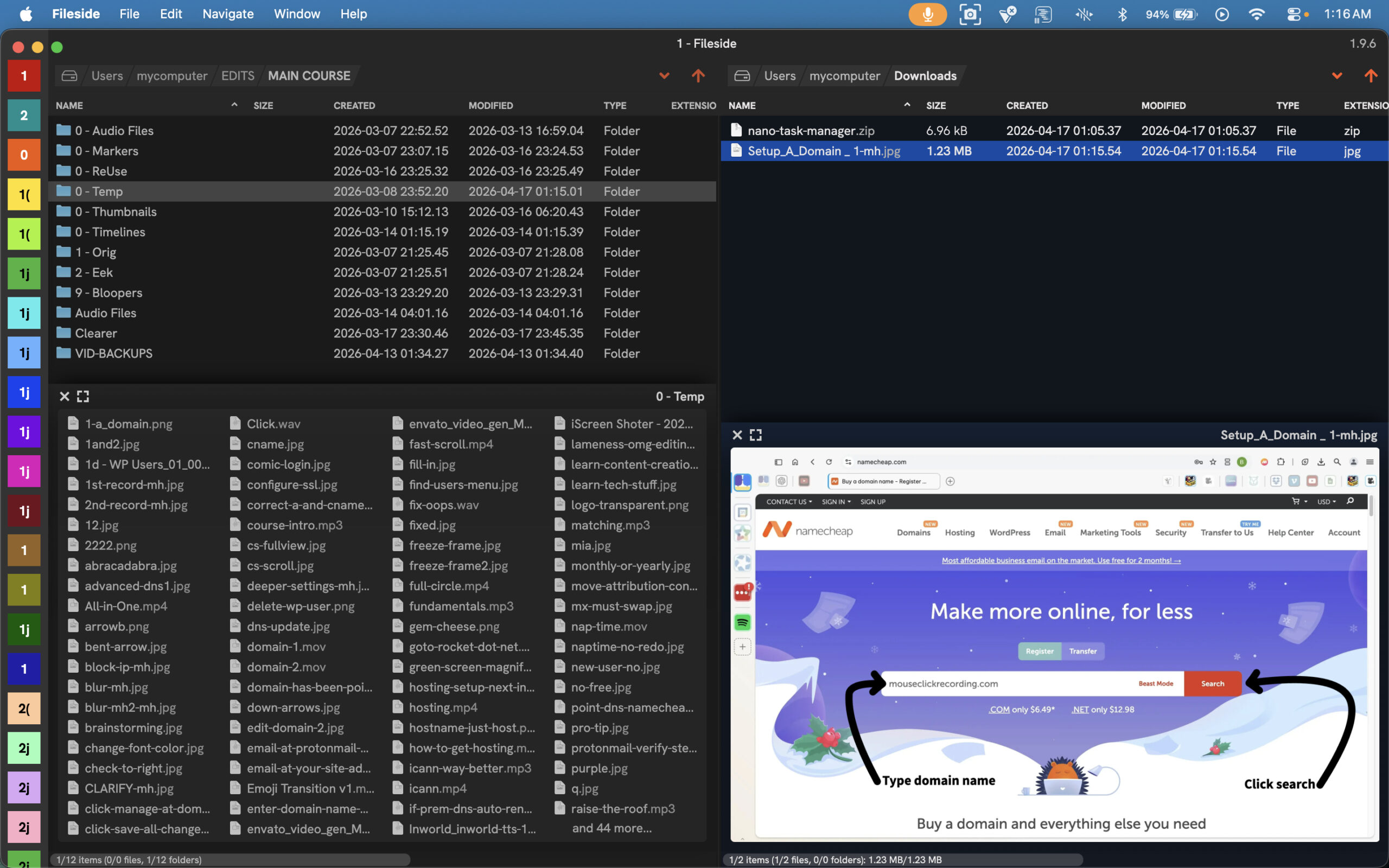
Fileside

Fileside

Fileside is a focused, multi-panel file manager designed to eliminate the friction of navigating complex folder structures. Instead of juggling separate windows or repeatedly drilling into nested directories, Fileside lets users build custom layouts with multiple panels visible at once, creating a clear overview of their entire workspace. This approach makes comparing folders, moving assets, and organizing project files significantly faster, especially for creators handling large volumes of media, screenshots, documents, and production resources. Its clean interface keeps everything accessible without the clutter typical of traditional file explorers.

Beyond its layout system, Fileside includes practical features such as persistent workspaces, quick folder bookmarking, panel presets, and rapid file previews that help maintain momentum during content creation and editing sessions. Drag-and-drop operations feel smooth and predictable, reducing repetitive actions and keeping workflows efficient. Stability and low overhead make it reliable even when managing sizable directories. With an emphasis on clarity, speed, and control, Fileside serves as a dependable organizational hub for creators who want a more structured way to manage digital assets and stay oriented during demanding projects.

Fileside

Internal Review (Learn More)
Regular Link

Commissions will not be earned from this link.

*Not Monetized

Affiliate Link

Commissions may be earned from this link.

*Monetized

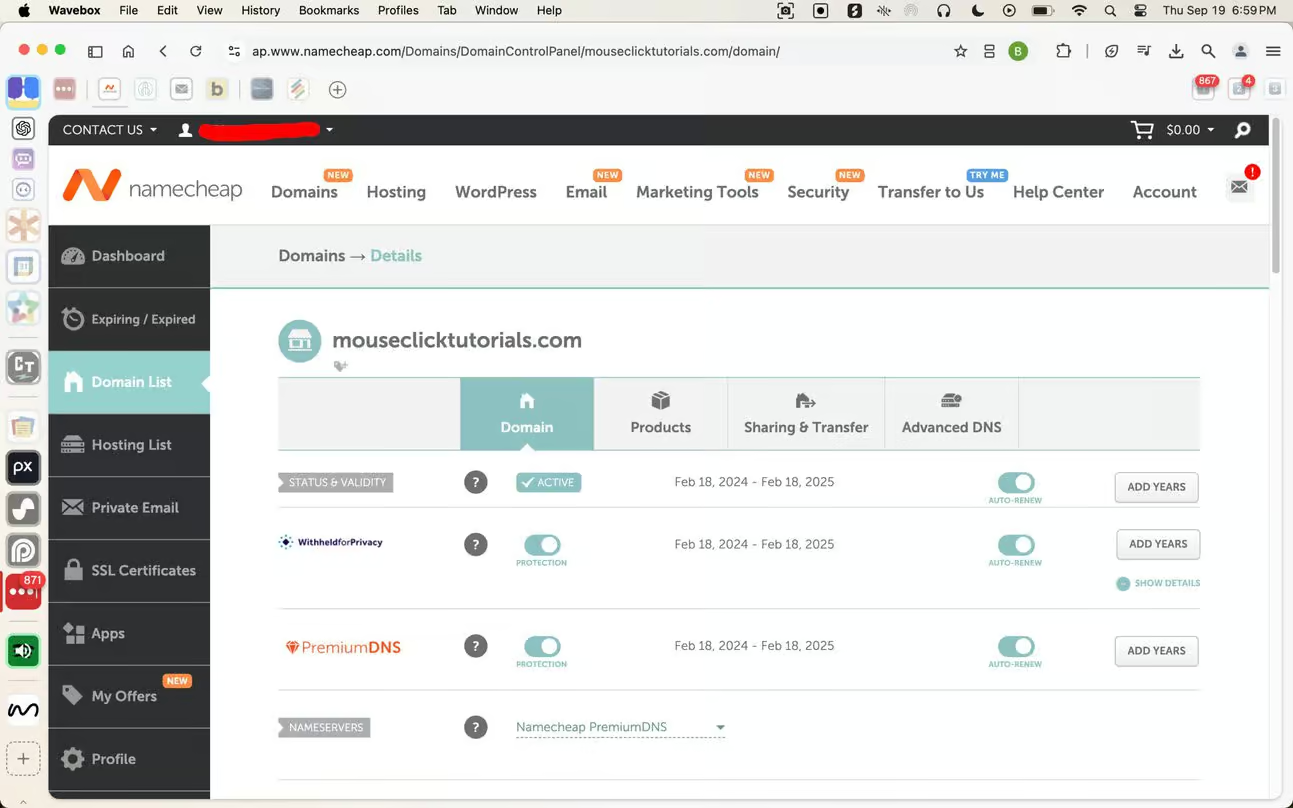
Namecheap

Namecheap

Namecheap is an ICANN-accredited domain registrar that offers a wide range of services dedicated to securing online identities for both individuals and businesses. With a strong reputation for affordable pricing, Namecheap allows users to register their domains without hidden fees, making it an attractive option for many. Its platform is designed with user-friendliness in mind, providing intuitive management tools that enable customers to easily manage their domains and associated services. Whether you’re a startup looking to establish your brand or an individual wanting a personal website, Namecheap caters to a variety of needs while emphasizing full ownership and control over the domain.

In addition to domain registration, Namecheap also provides various ancillary services, such as hosting options, SSL certificates, and website builders, allowing users to create a complete online presence from one platform. Their commitment to customer support is reflected in their responsive help desk, which assists users with any queries or issues they may encounter. This combination of reliable service, valuable features, and a focus on user empowerment has solidified Namecheap’s position as a premier choice for anyone looking to build and maintain a robust online identity, ensuring that customers can confidently navigate the complexities of establishing a website in today’s digital landscape.

Namecheap

Internal Review (Learn More)
Regular Link

Commissions will not be earned from this link.

*Not Monetized

Affiliate Link

Commissions may be earned from this link.

*Monetized

Rocket.net

Rocket.net

Rocket.net is a premium managed WordPress hosting platform engineered for exceptional speed, reliability, and security right out of the box. Unlike traditional hosts that require extensive configuration to reach peak performance, Rocket.net optimizes everything at the edge, delivering ultra-fast load times through its global CDN, built-in caching, and enterprise-grade infrastructure. The platform is designed with creators and businesses in mind, offering a clean, intuitive dashboard that makes it easy to deploy, manage, and maintain WordPress sites without technical friction. Whether you’re launching a personal project or scaling a high-traffic brand, Rocket.net provides an environment that prioritizes both performance and simplicity.

In addition to speed, Rocket.net emphasizes security and stability, integrating automatic backups, WAF protection, malware prevention, and daily updates to ensure your site stays safe and running smoothly. Their support team—known for rapid, expert-level assistance—helps users resolve issues quickly and confidently, reinforcing Rocket.net’s reputation as a premium hosting provider. Combined with its focus on transparency, hands-off optimization, and consistently strong uptime, Rocket.net has become a preferred choice for those who want a powerful, worry-free hosting experience. Its performance-first ecosystem enables creators to focus on building content and growing their audience while the platform handles the technical heavy lifting behind the scenes.

Rocket.net

Internal Review (Learn More)
Regular Link

Commissions will not be earned from this link.

*Not Monetized

Affiliate Link

Commissions may be earned from this link.

*Monetized

Bricks Builder

Bricks Builder

Bricks Builder is a visual page builder for WordPress that lets you design your site directly on the canvas — drag elements in, style them live, and see exactly what the page looks like as you build it. Instead of working around a theme’s built-in layout limitations or trying to piece things together through settings menus, Bricks puts the design process right in front of you. This makes building custom pages, landing pages, and post layouts significantly faster and more intuitive, especially for creators who want professional results without needing to write code from scratch.

Beyond the visual editor, Bricks includes practical features like global classes, query loops for displaying dynamic content, responsive controls for every breakpoint, custom CSS when you want it, and a solid library of elements that handle everything from basic structure to more complex layouts. The builder outputs clean, lightweight code that keeps sites fast without piling on extra optimization plugins. Shortcodes still work inside Bricks, so anything already built around them stays compatible. Its active development and strong community mean the tool keeps improving and answers are easy to find. With an emphasis on flexibility, visual control, and clean output, Bricks Builder has become a go-to for WordPress creators who want to build sites that look exactly the way they imagined without being boxed in by a rigid theme.

Bricks Builder

Internal Review (Learn More)
Regular Link

Commissions will not be earned from this link.

*Not Monetized

Affiliate Link

Commissions may be earned from this link.

*Monetized

Envato

Envato

Envato is a creative ecosystem built around multiple marketplaces, but the one that matters most for most creators is Envato Elements — a single subscription that unlocks an enormous library of ready-to-use creative assets. Instead of hunting across multiple platforms or paying per asset, Elements gives access to stock footage, music, sound effects, fonts, graphics, presentation templates, WordPress themes, plugins, and Elementor template kits all under one roof. For creators producing video content, course materials, or marketing visuals, that breadth alone saves significant time and money. The subscription model means experimenting with different assets carries no additional cost, keeping creative momentum moving without constant budget decisions interrupting the process.

What makes Envato Elements particularly valuable is how far the library extends beyond basic stock content. AI-powered tools for image generation, image editing, video generation, voiceovers, sound effects, music generation, and graphic creation are built directly into the platform, making it a surprisingly complete creative production hub. Video editors get motion graphics, transitions, overlays, and sound design resources that would otherwise require separate subscriptions. It’s worth knowing that Envato Elements and ThemeForest are different things — ThemeForest is Envato’s separate marketplace where premium WordPress themes are sold individually rather than included in a subscription. Elements is the subscription side, and that’s where the day-to-day value lives for most creators. With consistent updates, commercial licensing included, and tools spanning the full range of modern content creation, Envato Elements has become a practical all-in-one resource for creators who want professional assets without managing a dozen separate tools.

Envato

Internal Review (Learn More)
Regular Link

Commissions will not be earned from this link.

*Not Monetized

Affiliate Link

Commissions may be earned from this link.

*Monetized

InWorld AI

*** Inworld AI produces spoken voice only — not singing. This song was made with Suno.

InWorld AI

Inworld AI is a platform for creating AI characters with real personality, memory, and voice. Not just a text-to-speech tool — Inworld lets you define who the character is, how they speak, what they know, and how they stay consistent across every interaction. The result is narration and dialogue that actually sounds like a defined persona rather than a generic AI voice reading words off a page.

For creators, the practical value is straightforward. Set up the character once — personality, backstory, voice — and Inworld keeps it consistent. Long-context memory means the character doesn’t lose track of who it is mid-session. Voice output is high quality and emotion-aware, so delivery feels natural rather than robotic. It’s the kind of tool that makes a mascot character actually feel like a character.
Pricing starts free, with consumption-based costs as usage scales — so getting started doesn’t require a big commitment. The platform also powers production-level experiences for companies like Sony, Xbox, and NBCU, which means the infrastructure behind it is built to hold up well beyond hobby use. For creators who want a character voice that sounds intentional, stays consistent, and doesn’t require constant manual adjustment, Inworld is a genuinely solid option.

InWorld AI

Internal Review (Learn More)
Regular Link

Commissions will not be earned from this link.

*Not Monetized

Affiliate Link

Commissions may be earned from this link.

*Monetized

Suno

Suno

Suno is an AI music generator that turns text prompts into fully produced songs — vocals, instrumentation, lyrics, and all. Describe the genre, the mood, the vibe, paste in lyrics or let it write them, and Suno generates a complete track in seconds. No music production knowledge required. Over 1,200 genres are supported, and the output quality has reached a point where the results are genuinely usable for content, not just demos. For creators who need background music, intro tracks, branded audio, or just want to experiment with something that sounds real, Suno removes every barrier that used to stand between an idea and a finished song.
A free tier with daily credits makes it easy to try without committing, and paid plans unlock commercial use rights, longer tracks, stem separation, and more creative control over the final output. The latest versions deliver noticeably cleaner audio and more expressive vocals than earlier releases, and the platform keeps improving rapidly. For creators who want original music without hiring anyone or learning a DAW, Suno is the most capable and accessible option currently available.

Suno

Davinci Resolve

Davinci Resolve

DaVinci Resolve is a professional-grade video editing platform developed by Blackmagic Design that has become one of the most widely used tools in film, television, and content creation. What makes it unusual is that the core software is completely free — not a trial, not a lite version, but a genuinely full-featured editor used by professionals on major productions. The interface is organized around dedicated pages for editing, color grading, audio, visual effects, and delivery, each purpose-built for its specific workflow. The Cut page handles fast assembly editing, while the Edit page provides a traditional timeline environment with full control over every element of the project. For content creators, the combination of speed, quality, and zero cost makes it a straightforward choice.

Beyond basic editing, DaVinci Resolve includes Fairlight for professional audio mixing and mastering, Fusion for motion graphics and visual effects compositing, and one of the most respected color grading toolsets in the industry — the same tools used on Hollywood productions. A paid Studio version unlocks additional AI-powered features and collaboration tools, but the free version covers everything most creators will ever need. The learning curve can feel steep at first, but the Cut page is specifically designed for fast, low-friction editing that beginners can pick up quickly. With regular updates, a massive community, and extensive free tutorial resources available, DaVinci Resolve has become the default recommendation for anyone serious about video editing who doesn’t want to pay a monthly subscription to get professional results.


Davinci Resolve

Internal Review (Learn More)
Regular Link

Commissions will not be earned from this link.

*Not Monetized

Affiliate Link

Commissions may be earned from this link.

*Monetized

Flippa

Flippa

Flippa is an online marketplace for buying and selling digital assets — websites, apps, domains, and online businesses of all sizes. For creators and entrepreneurs who have built something with real traffic, revenue, or audience value, Flippa provides the infrastructure to turn that asset into a cash exit. For buyers, it’s a way to acquire an already-functioning online business instead of building from scratch — with search filters for niche, revenue, price, and business model making it possible to find something that fits specific goals and budgets. The platform handles the listing, discovery, and deal-making side of the transaction in one place, with valuation tools and due diligence resources built in to help both sides of the deal make informed decisions.

Beyond the basic marketplace, Flippa offers broker-assisted deals for larger transactions where professional guidance through the sale process makes sense. Verified financials, traffic data, and seller history help buyers assess what they’re actually getting before committing. For creators who think of their digital projects as assets rather than just content — something that can be built, grown, and eventually sold — Flippa is the platform that makes that exit actually possible. It’s also worth knowing as a long-term strategic option even if selling isn’t on the radar right now, because understanding that a site has real transferable value changes how it gets built from the beginning.

Flippa

Internal Review (Learn More)
Regular Link

Commissions will not be earned from this link.

*Not Monetized

Affiliate Link

Commissions may be earned from this link.

*Monetized

Yellow Light Resources

Has this website helped you?

If you found this site useful, please tell others! 🙏

The content on this site is built around clarity, purpose, and respect for the reader’s time. Tutorials are designed to support real progress — setting up the essentials, understanding how the digital side of things actually works, choosing reliable products and services, building a site aligned with personal goals, and learning how to earn ethically online.

If something here proves useful, feel free to share it with anyone who might benefit. Thoughtful recommendations help good resources reach more people trying to build online with integrity.

No email newsletter. No pop-ups. No “sign up to unlock.” That choice is intentional.

Forced funnels, artificial urgency, and inbox campaigns dressed up as generosity are not part of this model. Content stays fully accessible — no gatekeeping, no gimmicks — because real value shouldn’t come with strings attached. Trust is earned through usefulness, not pressure.

Sustainable growth comes from honest content, ethical recommendations, and long-term relationships. That’s the model here, and it’s the only one worth building on.

Contact MouseClickTutorials